
SketchUp to Artlantis

By Mr Wip
In this tutorial we are going to go through the basics from import of SketchUp model to final render. I will touch on all the important elements required to achieve your final render including the following:
Model Import, Cameras, Sun, Materials, Environment, Lights and Rendering.

The Beginning
Let’s take a simple SketchUp model with some colored boxes, a plan and a texture…there you are, the stage is set.
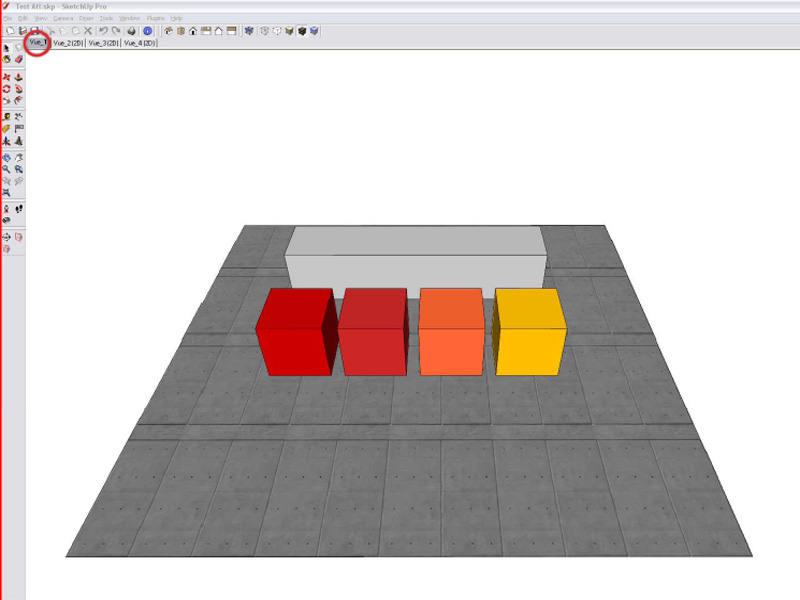
Basic Model
To import a SketchUp model into Artlantis, you just have to choose in the first window that pops up the skp. file type, and then the program will be able to load it directly. If everything has worked fine, you should be looking at something similar to the image below.
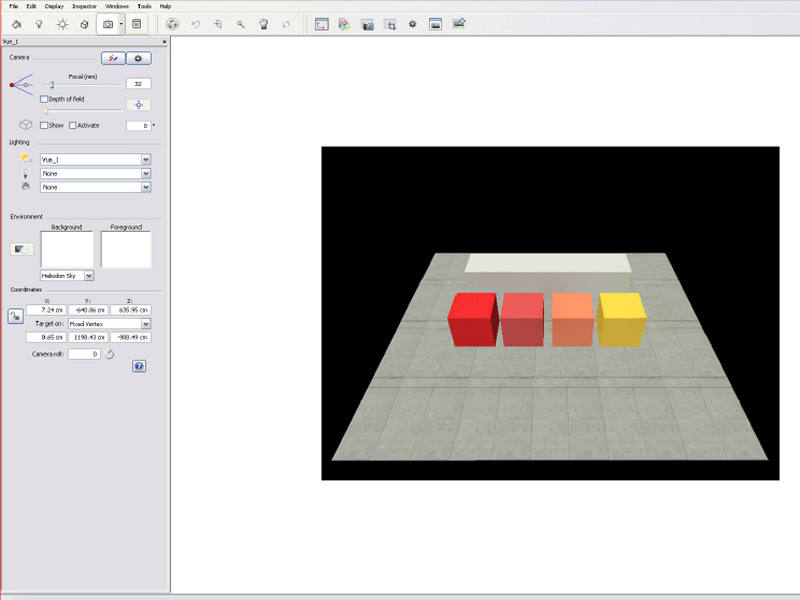
Import Model
It is useful to keep in mind the fact that Artlantis separates the model file and the pictures (of the textures) when it saves (SketchUp puts everything together in a kind of archive). So if you don’t want to be surprised by a large amount of picture files around your model, just place it directly in a folder of it’s own, from the beginning and everything will be just fine.
The software interface is, honestly, quite simple.
The right window shows a real-time preview of your render. Navigation inside this space is close to the SketchUp one.
There are four principal toolbar:
- Main setting categories (sun,cameras,materials…).
- Navigation tools (zoom,rotate…). The first button disables the realtime rendering, allowing quick manipulations of the model.
- Rendering and view options.
- Multipurpose toolbar, where all operations will be done. It changes according to the type of element selected (sun,materials…).
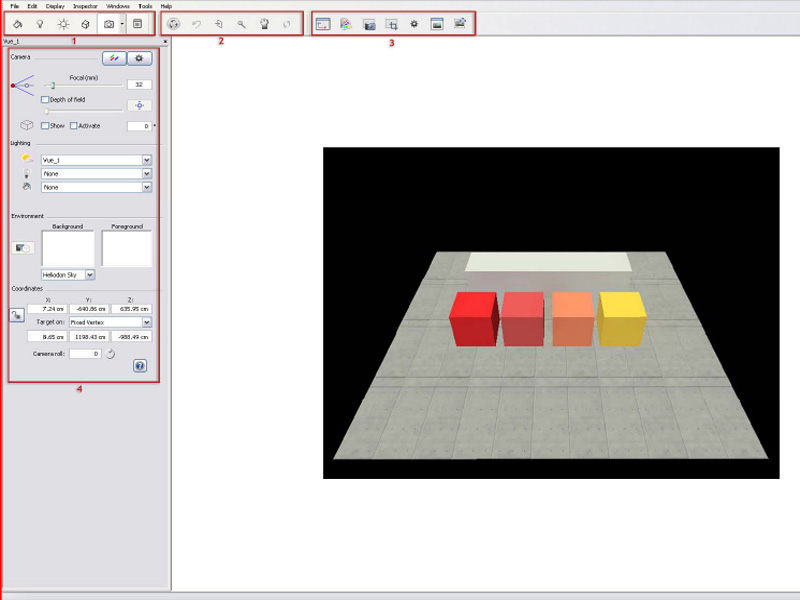
Software Interface

The Cameras
A render first requires the choice of a point of view. In Artlantis they are displayed as cameras, which you can find in the side panel. Any displayed views are related to SketchUp Scenes. However, do not panic if your model does not have any Scenes (everyone makes mistakes…), Artlantis automatically creates one camera called ‘Sketchup’, matching your last viewpoint.
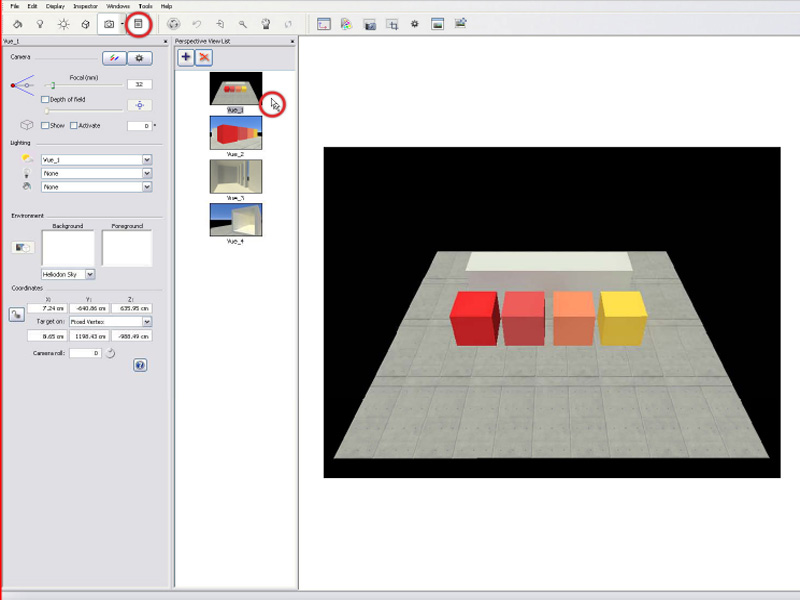
Camera Scene
Navigating in space and moving the camera are, at first, two linked operations. So in order not to lose a good point of view while sightseeing, it’s necessary to create a copy of a camera already setup, by pressing the ‘+’ icon (a new thumbnail is then added to the menu). Finding and manipulating precisely a camera is made easier by the use of the 2D view in which the active one is displayed as a small red dot. This panel is able to display different views (plan, façade etc.) useful in the coming steps.
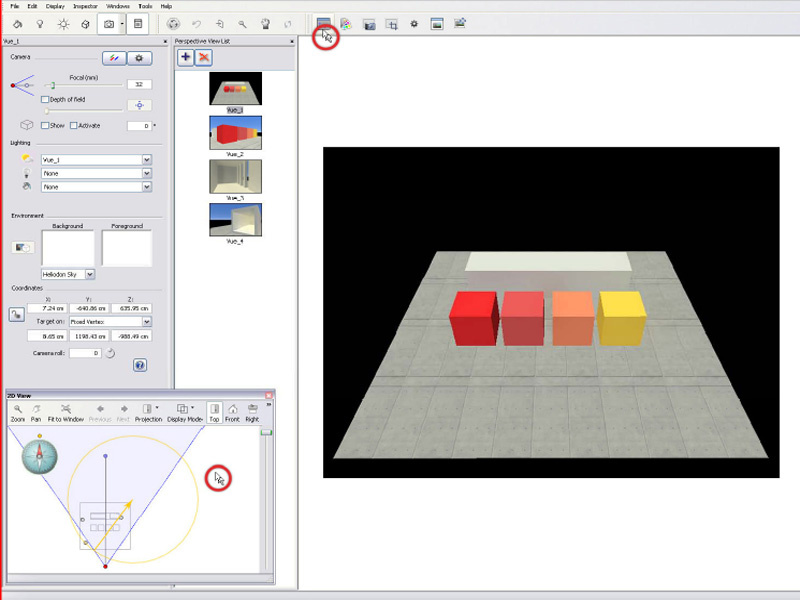
Copy Camera
Every camera has its own focal which can be easily adjusted from a pan view to a zoom.
Unfortunately focal angles are the only things that do not travel well from SketchUp to Artlantis and you will have to readjust them by hand to get a satisfying result…
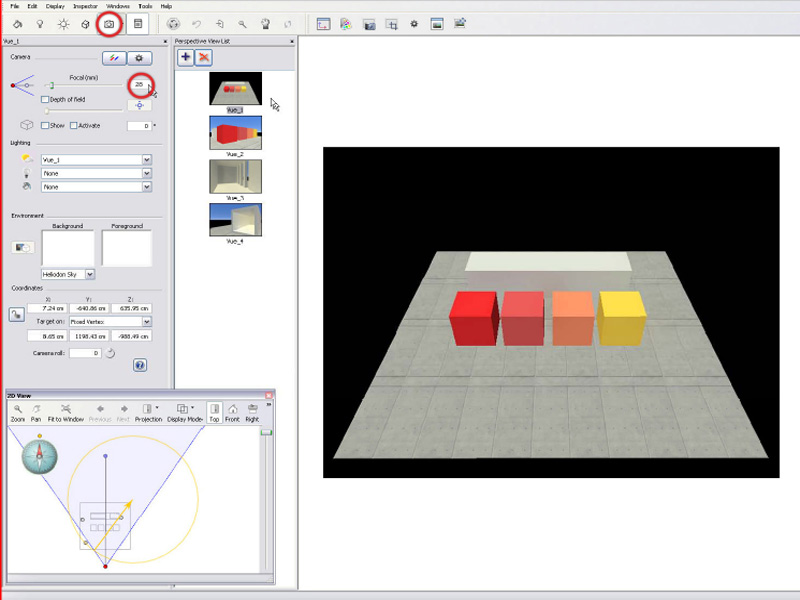
Focal Angle

Camera and Sun
When you know what to look at you can move on to creating a realistic environment. In that way, the sun is the first thing to set up properly. For each camera there is a sun. In our example, the camera ‘view1’ is linked to the sun ‘view1’, and it goes the same for the other ones. Through the menu, it’s then possible to assign any sun to any camera, regarding what suits best for your render (for example, let us be crazy, camera ‘View4’ with sun ‘view2 ‘).
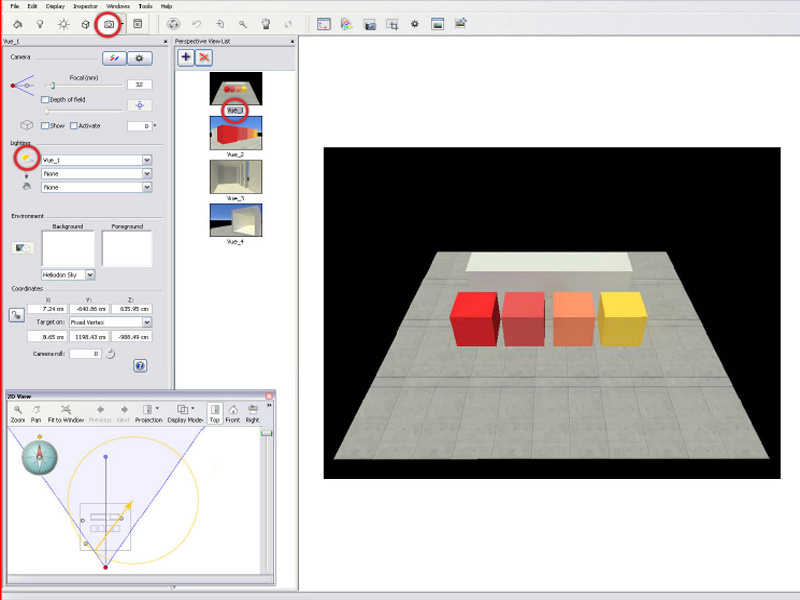
Assign Sun to Camera
Similar to the camera menu, the sun menu shows in the right columns the list of those present in the scene.
Again, pressing ‘+’ add a new one in the menu. In order to see clearly the real effect of the sun, enabling the shadows is obviously necessary. A slider allows an adjustment of their sharpness from strong, like in SketchUp), to smooth which is much more realistic.

Using the sun requires an adjustment of some parameters (date, time, location…) through the first icons and sliders of the toolbar (if you don’t understand by yourself how they work, sorry, but you’d better stop reading this tutorial right now…). By the way, the 2D view also shows the sun position, as the north angle, so it’s possible to adjust it there.
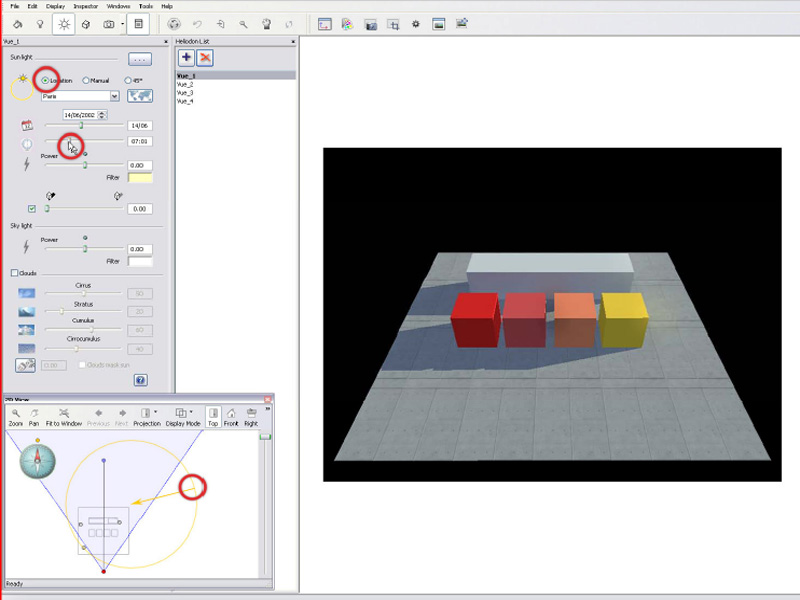
Adjust Sun Parameters
A ‘natural ‘outside lighting solution is made of two separate elements:
- The sun: a direct light that creates clearly defined shadows.
- The sky: a diffuse uniform light emited by a dome surrounding the model.
The sky light allows a much more realistic illumination of the area non-directly hit by a sun ray (shadows in fact…)
Intensity of both sun and sky are linked directly to dates and time settings, but it’s possible to overwrite them through some sliders.
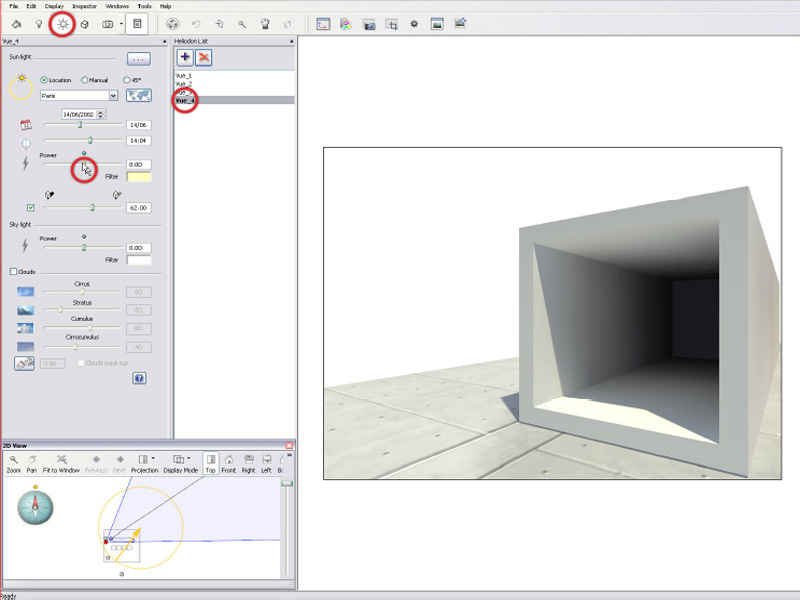
Natural Outside Light
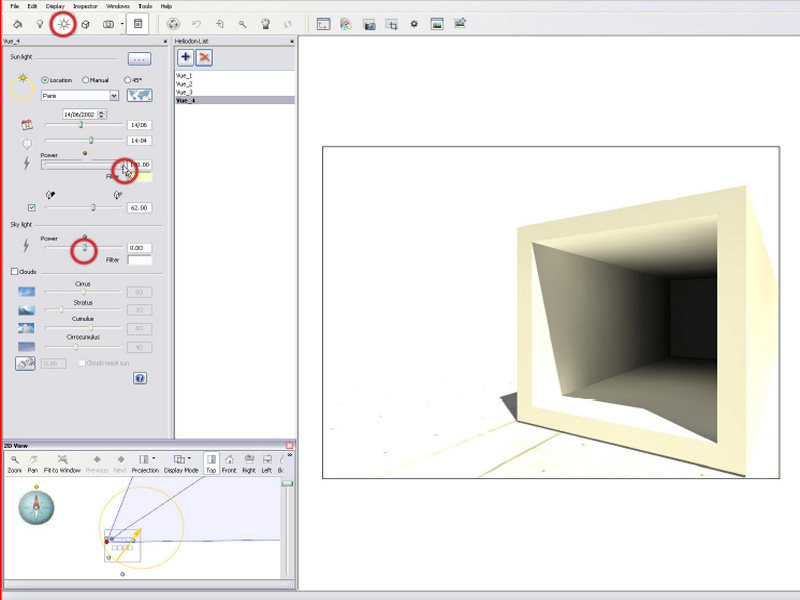
Settings

Settings

All About Materials
Playing with the sunlight is useless if the presented objects have no style, so…
The selection of a material is made by a simple click on the geometry in the model view, or directly through the menu, but then you have to already know the name of the material, and it’s often not the case.
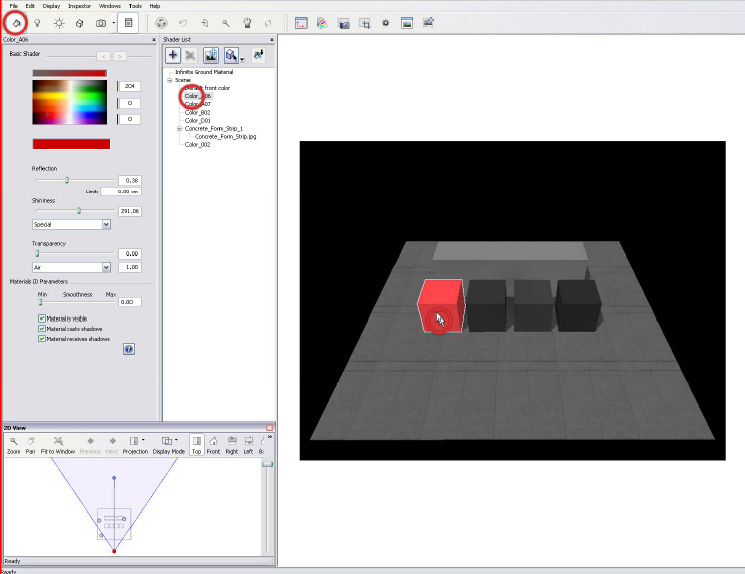
Material Selection
One of the main elements that brings realism to a material is its level of reflection and the quality of it. Those parameters are directly adjusted by two sliders in the toolbar:
- Reflection: Allows adjustments from a barely reflective surface to a complete mirror.
- Shininess: Changes the quality of the reflection, a bigger value enhancing its quality.
Transparency is also adjustable in the same way, and settings made in SketchUp are recognized by Artlantis.
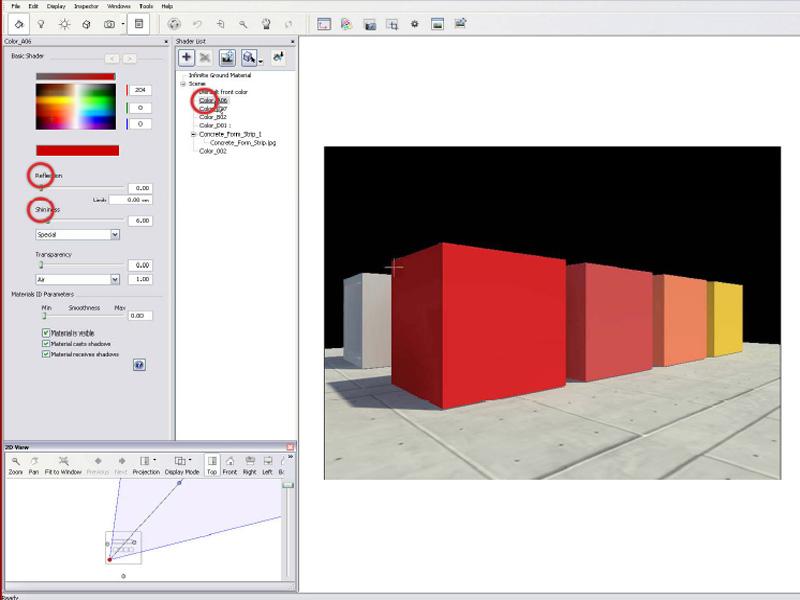
Reflection and Shininess
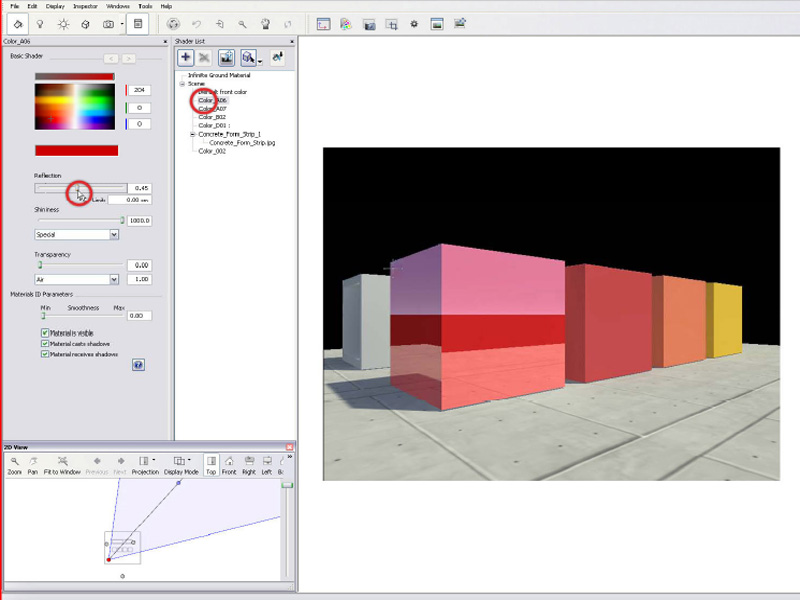
Adjust Reflection
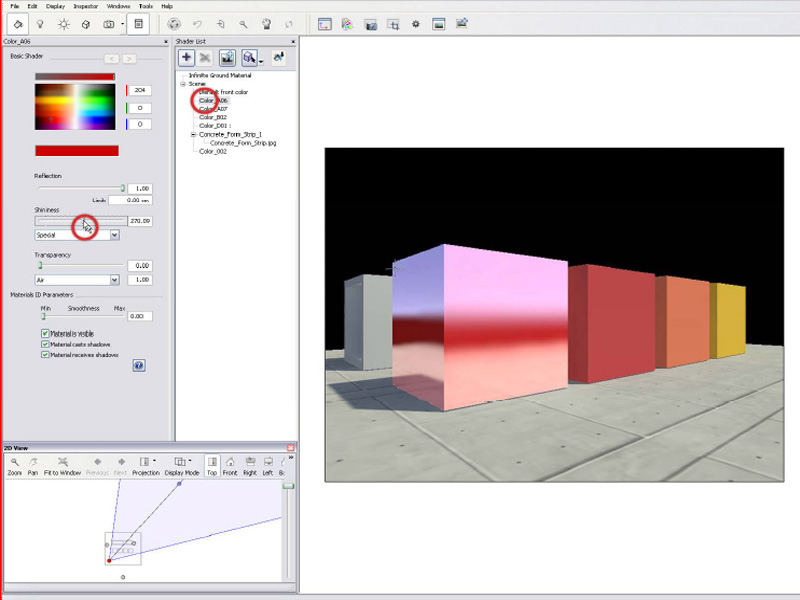
Adjust Shininess
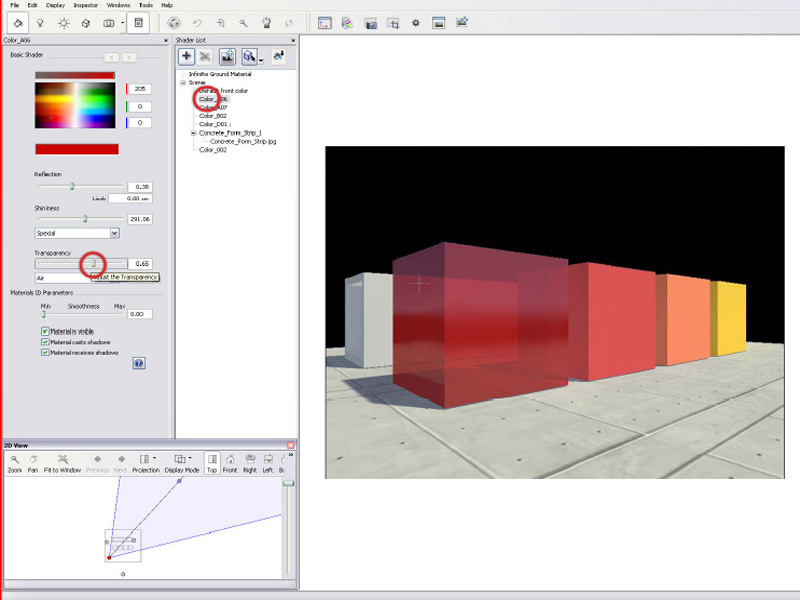
Adjust Transparency
It’s possible to change the tint of a material within Artlantis by right clicking on the colored panel which makes a color chart appear.
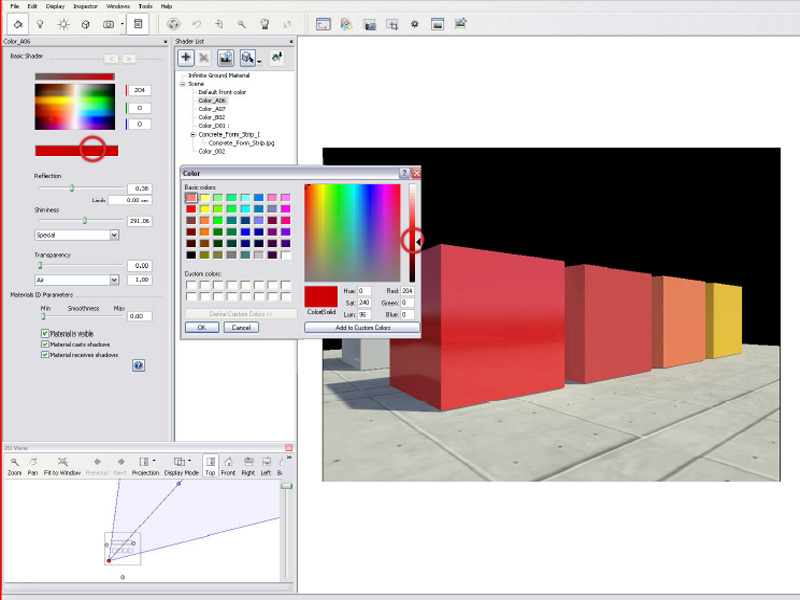
Color Chart
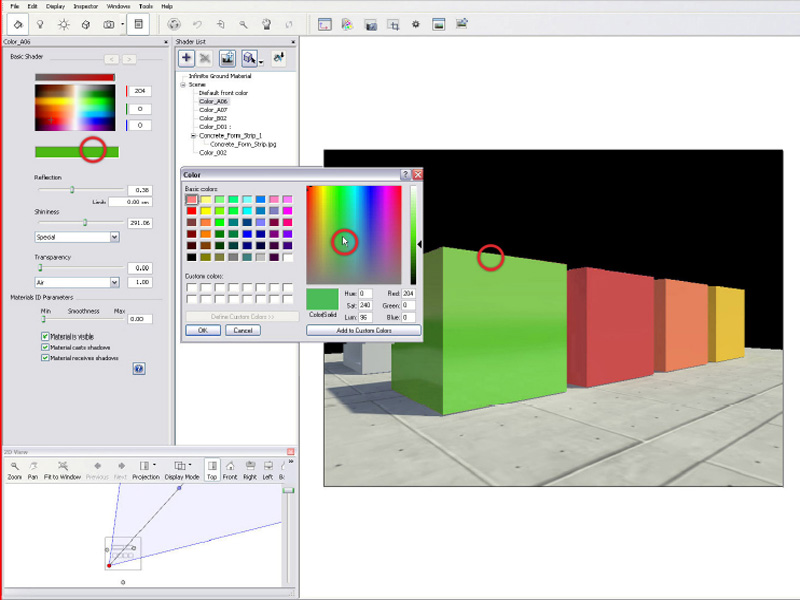
Select Color
A material is rarely just a simple colored surface. If it contains a texture, it’s possible to edit the basics, transparency, reflectivity etc.. but it’s also easy to add an efficient bump effect through a slider.
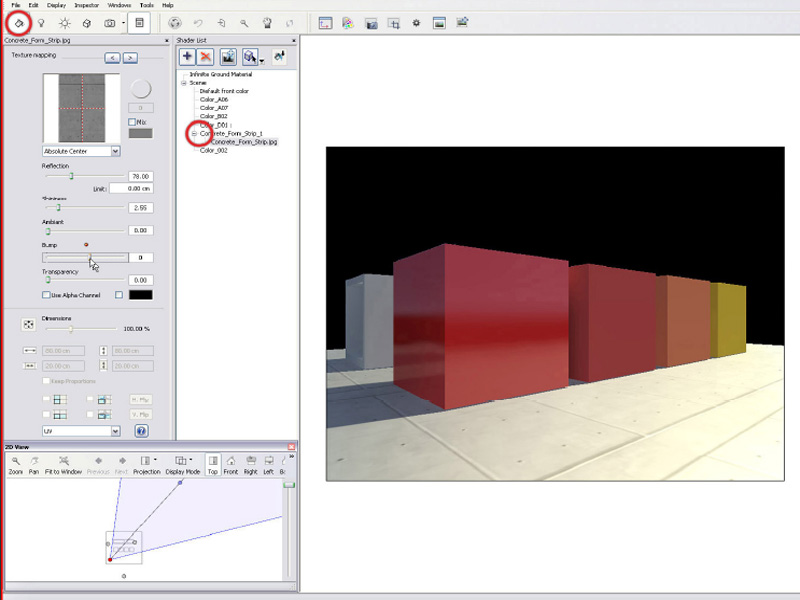
Adjust Bump Slider
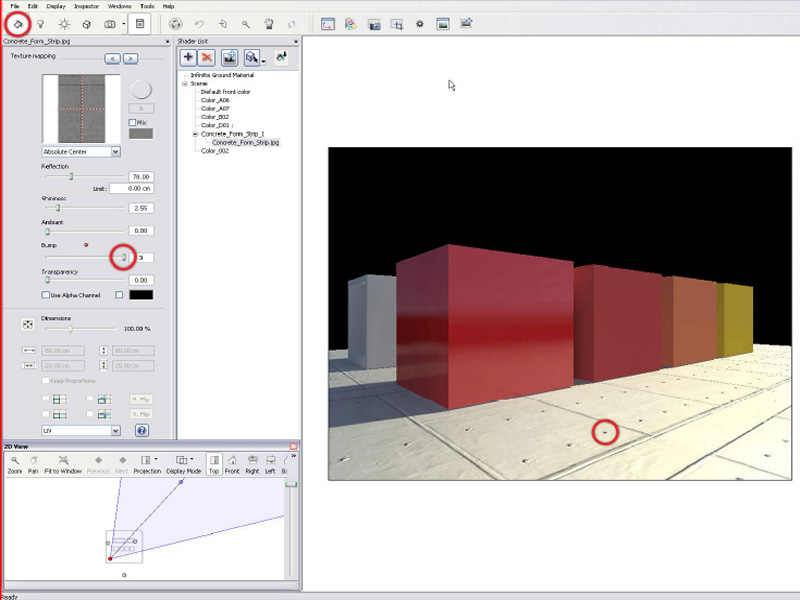
Adding Bump with Slider

The Environment
When the scene begins to have an interesting look, it’s necessary to take a step back and pay attention to the surroundings. Initially, the background is a ‘physical’ sky, a colored dome relating to the sun position.
It’s possible to add to this realistic sky a wide range of cloud formations. If the automatic sky does not suits your needs, you can replace it, through a menu, by more classic elements: solid color, gradient, picture etc.
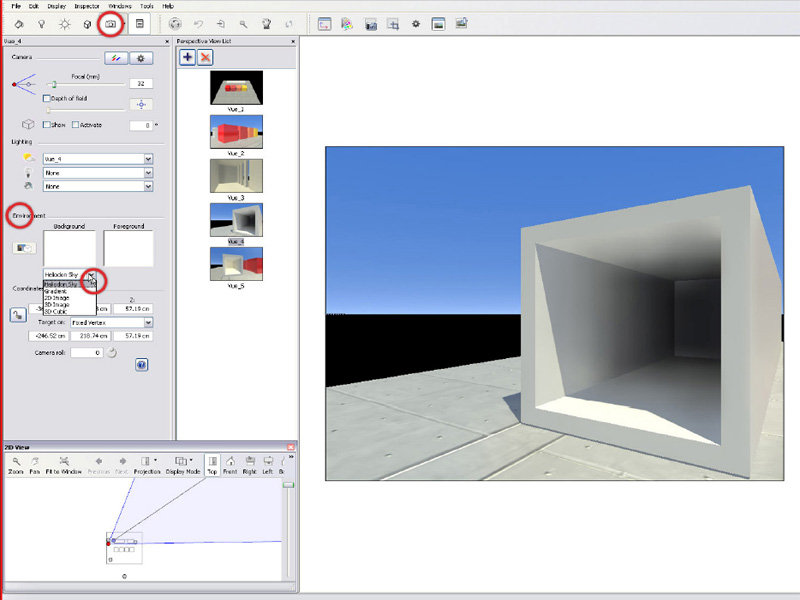
Environment Settings
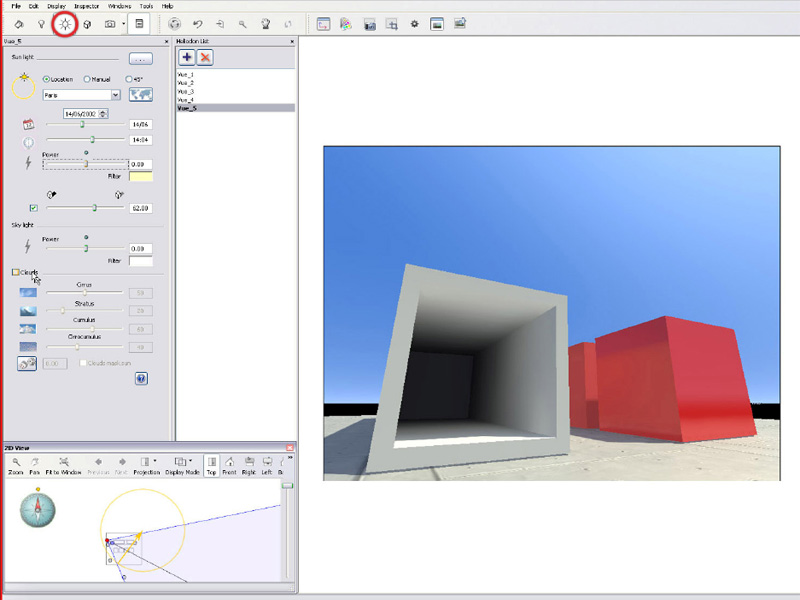
Sunlight Settings
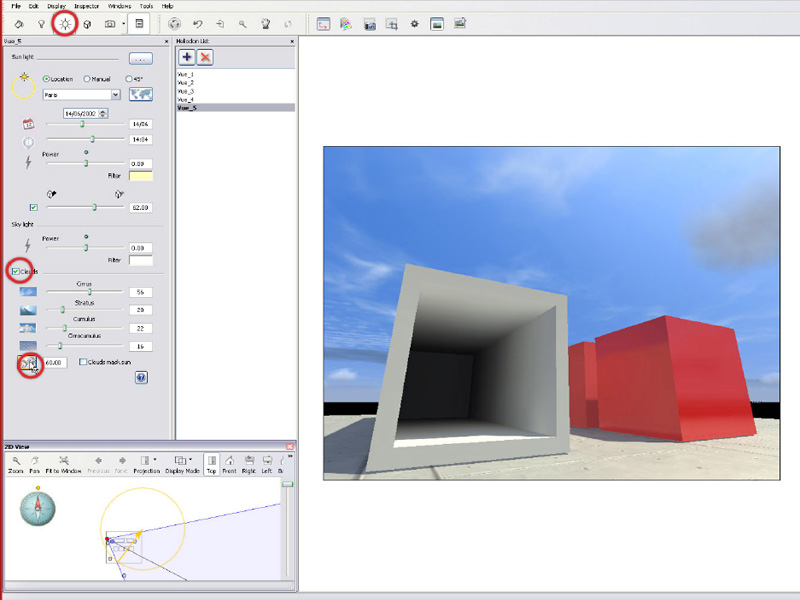
Tick Cloud Selection
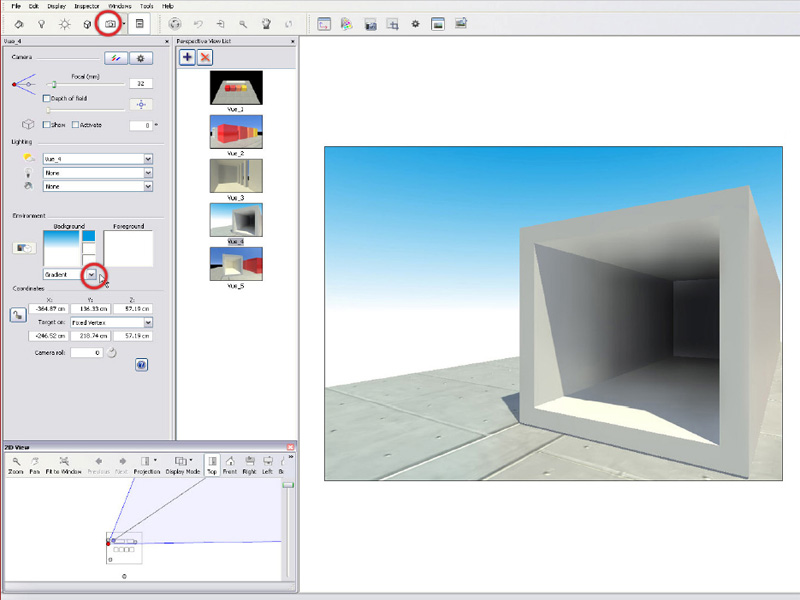
Gradient
Illumination
The sun is an efficient light source in many cases but for indoor rendering or night rendering,obviously it’s quickly limited. It’s then necessary to take a look at artificial light sources (let’s consider the virtual sun as a natural one). Lamps are arranged into groups linked to every camera by the lighting panel. By the way, a night effect is achieved easily by deactivating the sunlight in the same menu.
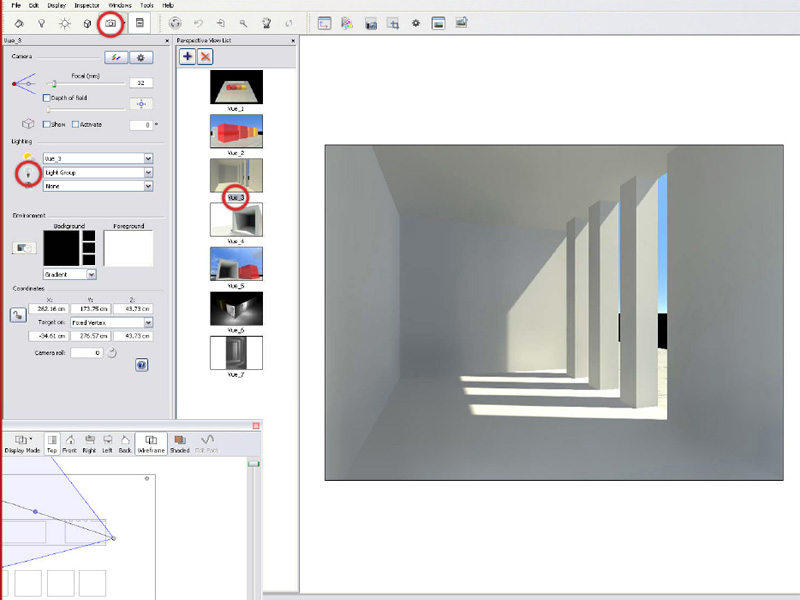
Lighting Settings
To create a lamp, select a light group in the menu and press ‘+’. The lamp appears at the same place as the camera and you then have to manipulate it to place it where you want. To do so, use the2D view, where lamps appear as yellow dots. As for the sun, lamp’s shadows are not automatically enabled, and the related box has to be ticked to create a more realistic effect. All lamps are spots, and you can see and adjust the three elements that define them (source,target and angle) in the 2D view or by numerical input.
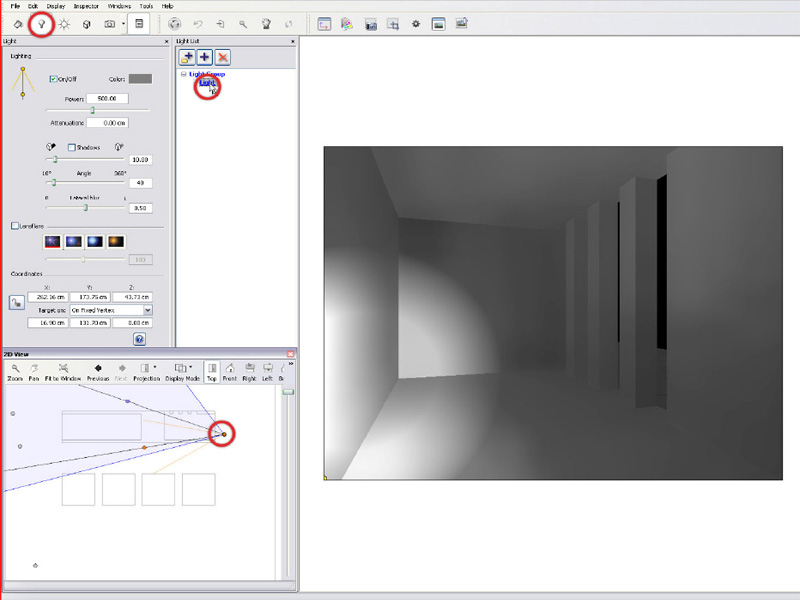
Lamp Creation
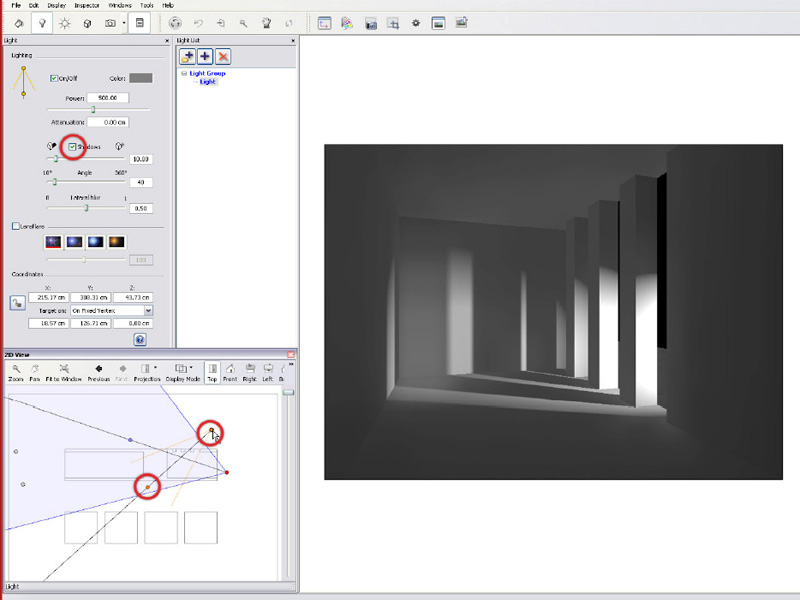
Shadow Settings
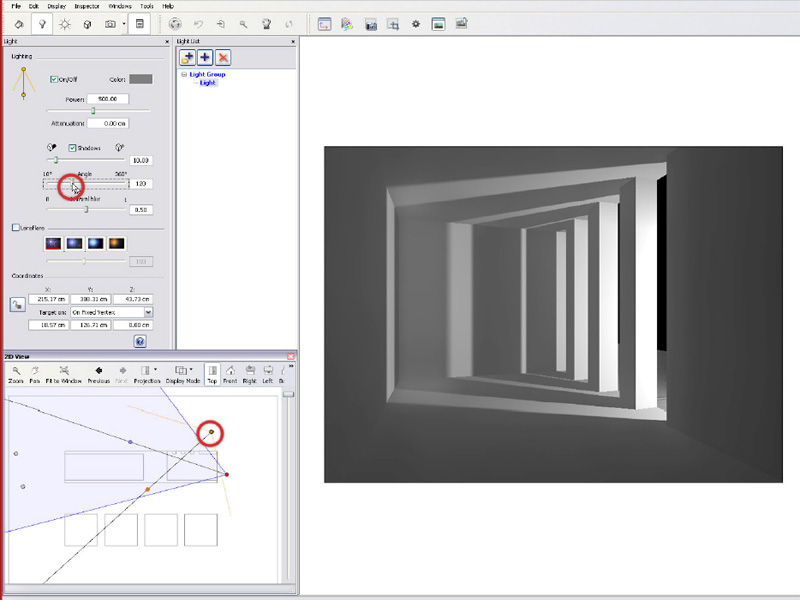
Angle Setting
To get an omnidirectional light source, just set the spot angle to 360°. Light intensity can be seen directly in the preview window and once again adjusted by a slider.
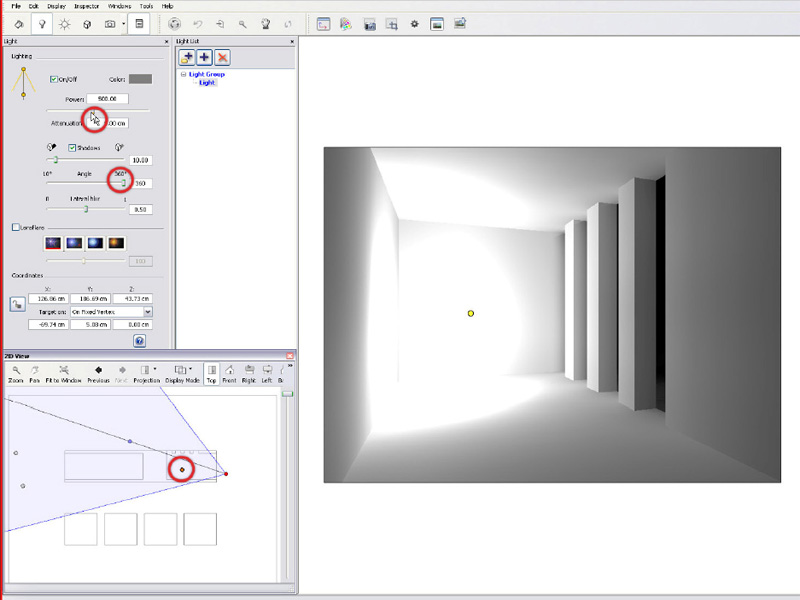
Omnidirectional light
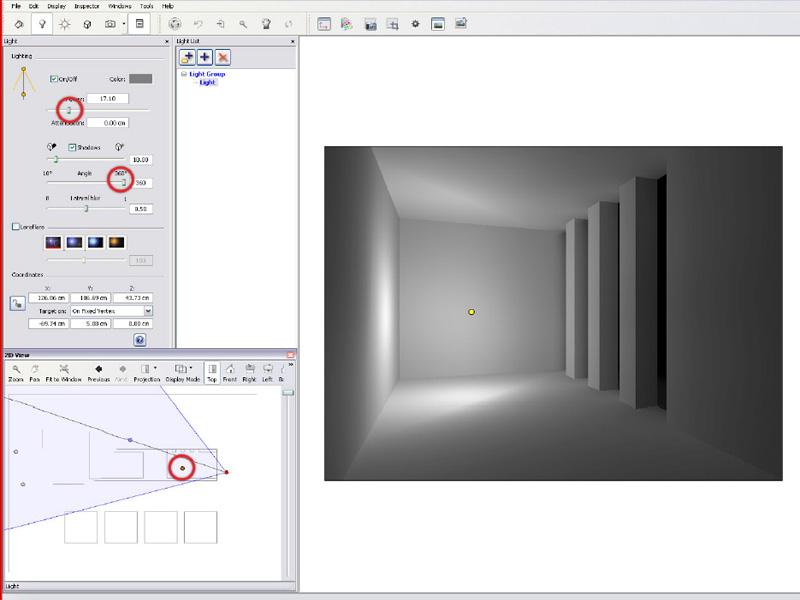
Light Intensity Setting
To create a new lamp, it’s of course possible to press again ‘+’, but it’s more interesting to ‘right click-duplicate’ on an existing light in order to copy and paste it in place. Again the 2D view is useful to place it well.
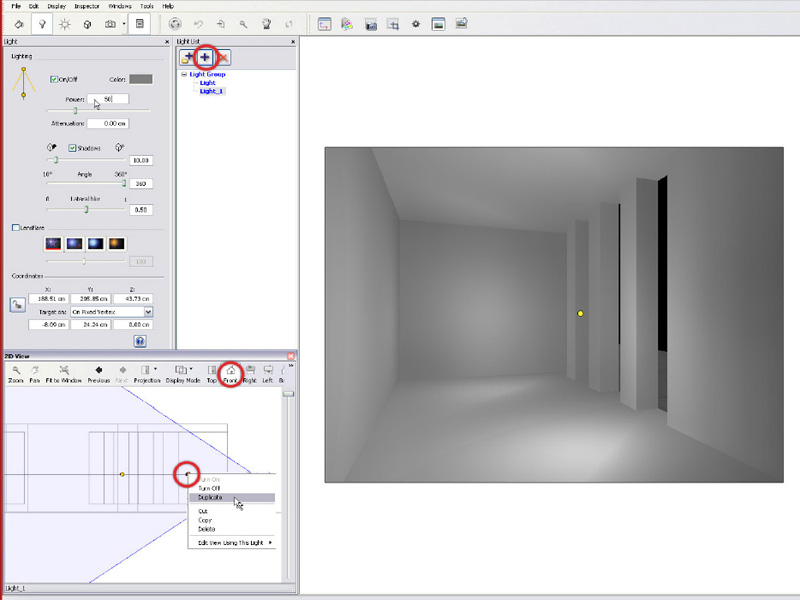
Duplicate Lamp
Rendering
The model is now ready to be rendered and there’s just some general settings to adjust before it will be done.
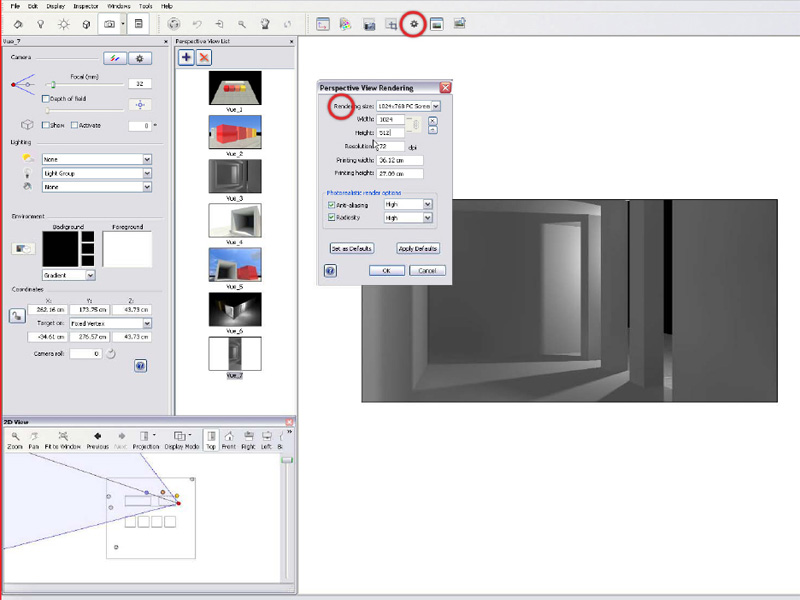
Through the settings tab it’s possible to change the rendering size, which will be adopted by the preview window, allowing a better framing of the render. The picture’s quality depends on its size but also on the calculation precision.
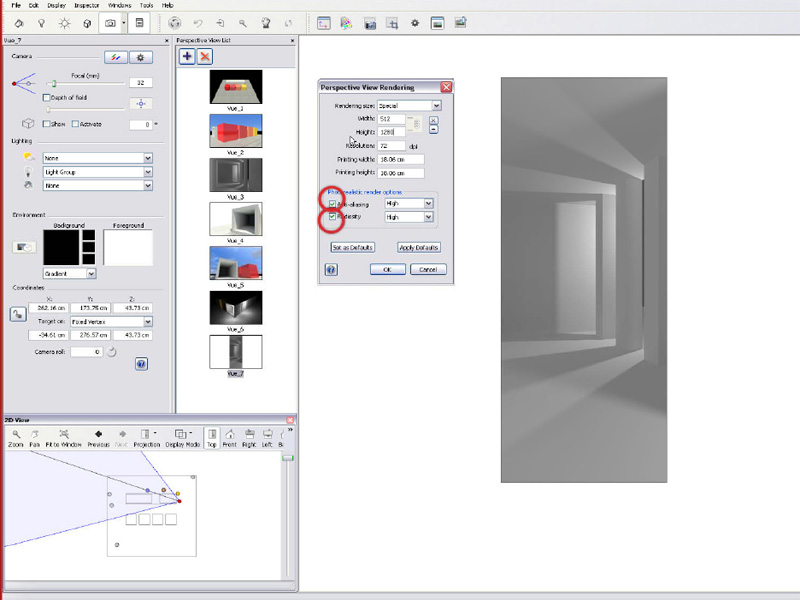
The main parameters are Anti-aliasing (‘sharpness ‘of the picture) and Radiosity (light calculation quality).
It’s then up to you to choose how to adjust them, regarding the time left for the rendering process.
Some Render Settings
Anti-aliasing and Radiosity
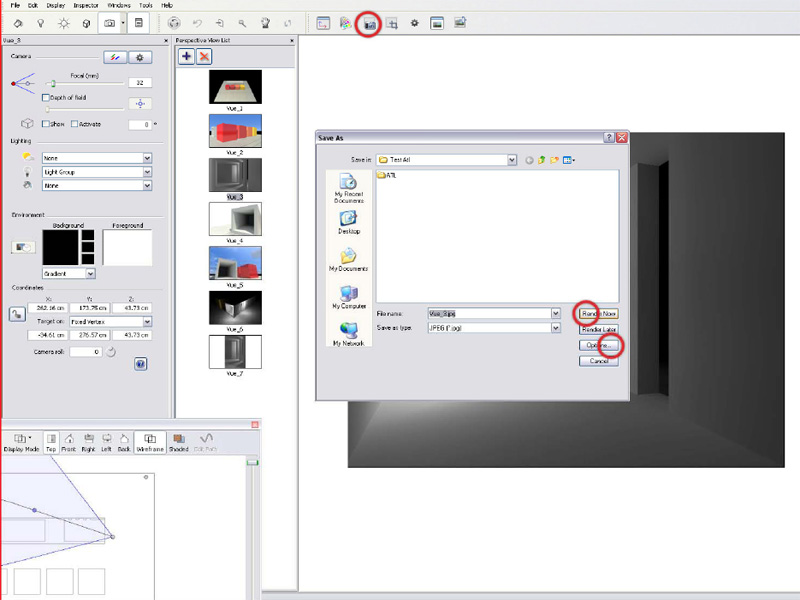
The render window asks you to save the picture, and allows a final settings adjustment before the last big step.
Final Settings
Well done! Now you just have to wait patiently for the result…
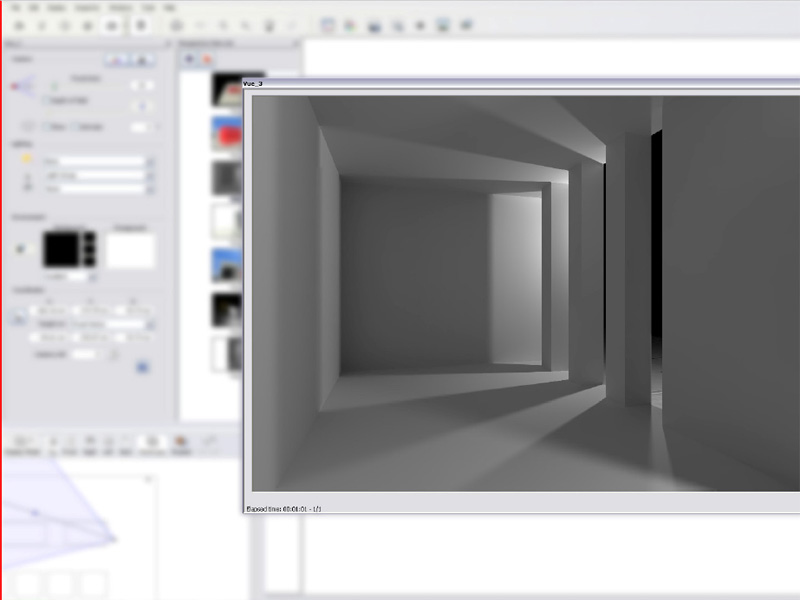
Final Render
Thank you for reading this. Its all you need to know to get started.
Mr WIP
Profile Builder 4

Artisan Organic Toolset

PlaceMaker Version 3

Skimp Pro Import Extension

BIM Bundle Special Offer!

SketchPlus Artist Bundle !

Bevel Tool

V-Ray 5 for SketchUp E-Book
I am a new one in using Artlantis from Skectch up- your instruction is so handy to me. THanks much
I ‘m still waiting to get continue one. It ‘s good to understand very easy.
Thanks For Good Things.
hi,
first thnx 4 instruction , its very easy to understand.
i have one problem , that i cant import the sketchup file in artlantis ..?
can you learn me how to do it stip by stip plz.
thnx
Exellent Presentation, Richly informative, and Succinct…….. thanks Mr Wipp
thank you very good to learn
This is not good, it is EXCELLENT! Thank you sir, to help me with this “simple” program! Regards from Finland ;D
Good tutorial very educative
can i insert my picture ( i mean my own personal picture) in artlantis before rendering?
@Kingsley, I don’t use Artlantis but what I have researched seems to show that the easiest way to replace a background image is to drag and drop any image you like from the inspector background submenu or even drag and drop an image file from your computer directly to the background of the model, and should work as I believe.
thank you to help me with this “smple program’ it is very easy to understand..i hope you will release 64bit I ‘m still waiting to get 64bit artlantis…..thank you
Mr WIP, you are an absolute star. I never normally comment on things like this, but seriously, you are a massive, massive help. Thank you so so much!!
Like Alex, i would never normally comment on tutorials… but this was fantastic 🙂 so very very helpful. I can now start creating some excellent renders for my architecture course 😀
thanks very much…. 🙂 🙂 good man!
thanks for this information! but I still have one problem.
when I put shaders on my model, for instance there are strange patterns in the bricks.. paraboles and half circles.. if you zoom in close enough they disappear, but if you want not only a rendering of a couple of bricks then the paraboles and circles appear ..
do you guys know how to get this thing normal?
thanks!
perfect tutorial, thank you! But I have one question. Do you know how to open a 3D Section (made in Sketchup) in Artlantis so that I can render it?
hello, I need to edit a object. Is an external object, I want to make an object from the object to move that part,
if you know how, please tell me,
thank you very much
thank u very much. i am encountering a certain problem.every time i click the render button ..the render window is just being filled with a blank white color.. how can i go about with this?
I got the same problem as you samuel, I can see the project in everywhere else, but when I try to render there is nothing but white!
Any feedback would be much appreciated!
Hello I have a problem about sketchup materials. Some of them are opened in artlantis but most of them are not visible further more they got connected to each other and this white color is called as defult front color in artlantis. eventhough they werent component in sketchup how come they became together and how I can break this unity? I would be so much glad if I get can answer for this problem…
I am Want gate Software Sketchup to Artlantis
hi I’m using sketch up pro 15 and i can’t upload my skp file in artlantis studio 5. Is it not supported or do i have to do a conversion? Please help me, my submission is tmr.
Does this help you hannah http://www.artlantis.com/en/downloads/