
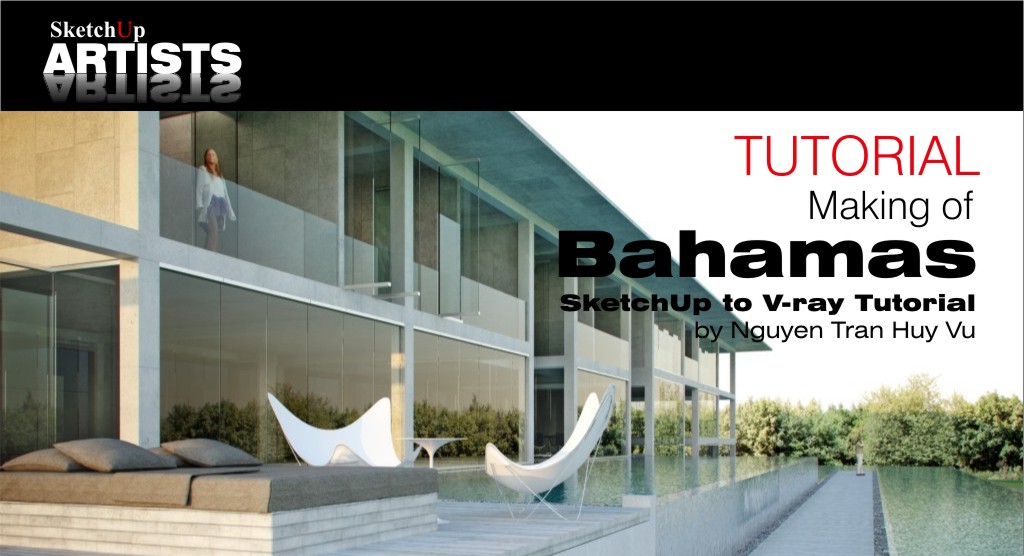
Making of Bahamas

By Nguyen Tran Huy Vu
In this tutorial I will be covering the basics of SketchUp to V-Ray for 3ds Max work flow. I will not be covering every single detail, like applying materials in 3ds Max, since I am assuming that you already have some basic knowledge of the process.
Step 1 – The model I started with

Initial 3D Model Created by Huyvu
Step 2 – Working with layers

Working With Layers
One of the most important things when modeling here in SketchUp is the use of Layers . In this file I will divide my model into different layers for example : columns, walls, beams , water, etc…

Working With Layers

Working With Layers
Step 3 – Exporting to 3ds Max

Exporting to 3ds Max

Exporting to 3ds Max

Exporting to 3ds Max
When I am satisfied with the final result , I will export my completed SketchUp model Skp. file to 3ds Max by layer. Step by step I will Check “visible” layer while others remain unchecked, then I am ready to export to 3ds Max.
In the option menu I will set :
Geometry:
– Export: Full hierarchy with multi objects, if that object is a chair,then choose “Single object”
– Don’t check the check box on “Geometry” option, unless you want to export the current selection.
Material:
– Check “export texture maps”, It is important to check this if you plan to use SketchUp materials in 3ds Max . If not , and if you want to create new materials in 3ds Max, then don’t check this option.
Cameras:
– Check “generate cameras from pages” only in the last export. If you check this box during each export then in your final 3ds Max file you are going to have a lotl of coinciding cameras.
Step 5 – Inside 3ds Max

Inside 3ds Max
Open 3ds Max. I am using 3ds Max version 2009 but you can also use any older version . Go to File>Import and choose the last 3ds that you exported. Before completion of the import process, you must make a group of these objects and convert them to editable poly. Then you must create material/shade and assign it to that object. You should attach them to one object for easy management. Remember: only choose “yes” for the camera in question for the THE LAST imported step.

Inside 3ds Max

Inside 3ds Max

Inside 3ds Max
Step 6 – Creating V-Ray Sky and Sun
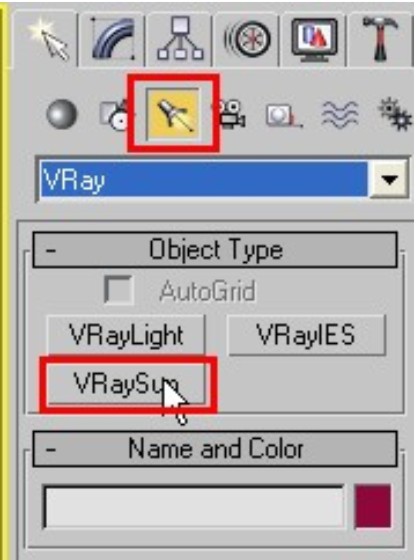
Creating V-Ray Sky and Sun
Now I will create V-Ray Sky and V-Ray Sun: click and drag to make V-Ray Sky and V-Ray Sun. After I have created V-Ray Sun I will switch to Front View and move towards the sky (move forward following the z axis)

Creating V-Ray Sky and Sun

Creating V-Ray Sky and Sun
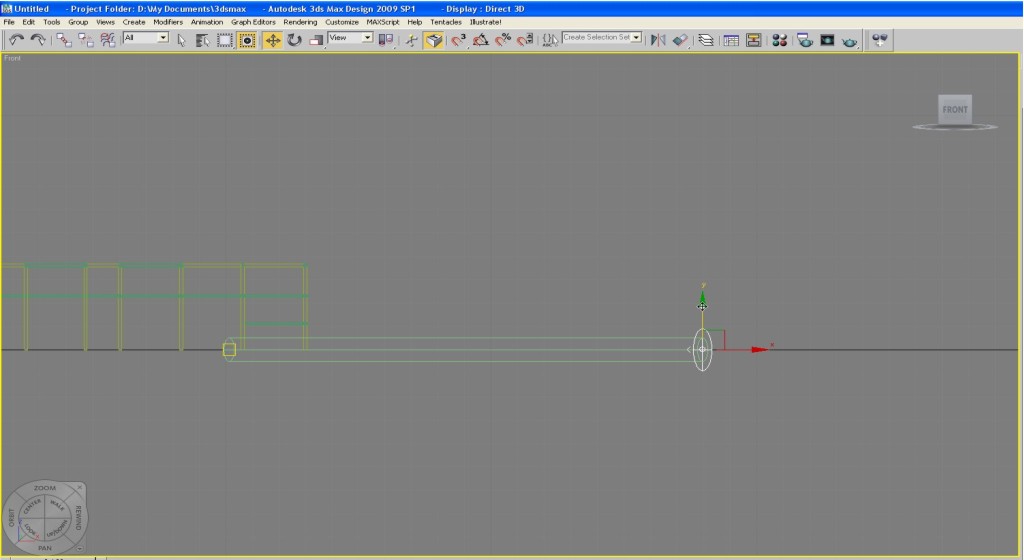
Creating V-Ray Sky and Sun

Creating V-Ray Sky and Sun
Step 7 – Creating background cylinder
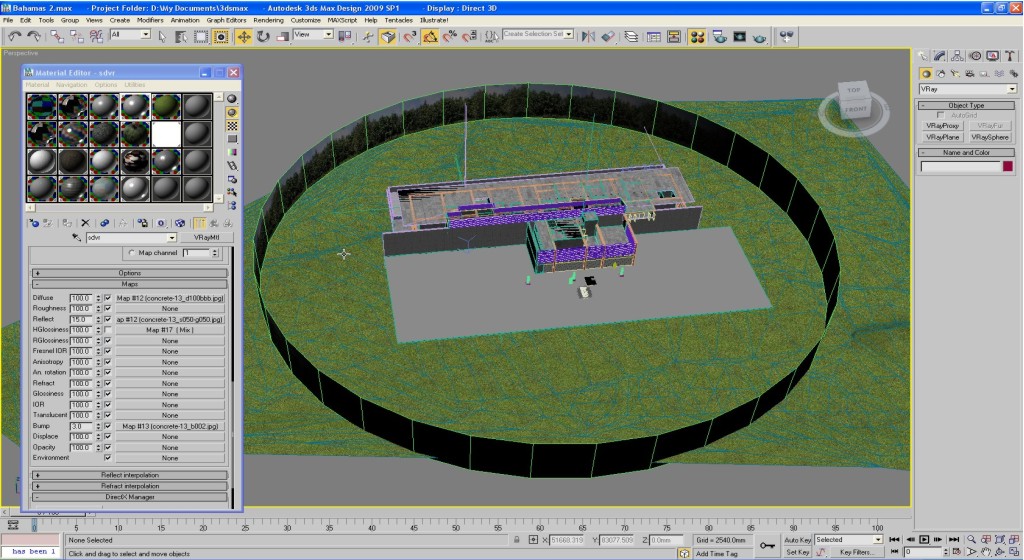
Creating Cylinder for Background
I will create the environment in the form of a cylinder. After I have completed that I will assign a material background image to it. The cylinder shouldn’t be to big. It should roughly coincide with the size of the building.

Creating Background Cylinder
Finally, these were my final V-Ray render settings.
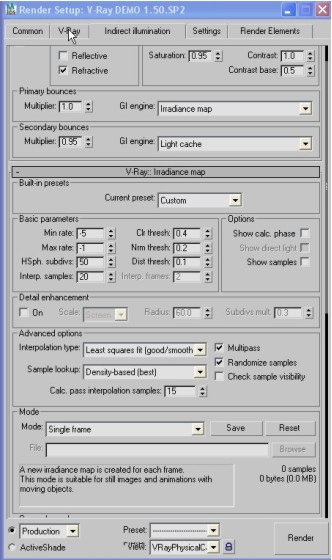
Final V-ray Render Settings
And here are the final renders:

Making of Bahamas - Final Render - 1

Making of Bahamas - Final Render - 2
I hope you enjoyed looking through this tutorial and it has gone someway in explaining the process.
Thanks and happy rendering…
Nguyen Tran Huy Vu
Profile Builder 4

Artisan Organic Toolset

PlaceMaker Version 3

Skimp Pro Import Extension

BIM Bundle Special Offer!

SketchPlus Artist Bundle !

Bevel Tool

V-Ray 5 for SketchUp E-Book
Great Tuts HuyVu, Congratulation !
COOL n’SO GREAT!! It’s Very Real and Beautiful!!
Congratulation HUYVU….
Sao toàn người VN khen nhau ko vậy? 🙂
Félicitations HUY VU
sao anh ko dich ra ban tieng Viet cho a e biet duong ma man^` chu*”. hix :(. Chuc mung anh !!
bài này rất hay,bạn lapdi_máu lạnh nói đúng đó ,bạn viết một bài bằng tiếng việt nam đi gửi lên trang Suvn.net đó. đang có trương trình kích cầu người việt nam viết tut cho người Việt nam mà hehe
@tulacong: xin lỗi, yêu cầu này mình ko làm dc vì mình đã tẩy chay suvn rồi. các bạn có nhã ý cứ thoải mái dịch lại bài này và post lên bất cứ diễn đàn nào.
—–
soviet-forever.
i finally had a chance to view your tutorial!!! it’s cool… i learned a lot… i just need to practice more….
It’s a very special tut. Hope you to make another things like this in order to share us and learn each other.
You mention:
”Before completion of the import process, you must make a group of these objects and convert them to editable poly. Then you must create material/shade and assign it to that object. You should attach them to one object for easy management.”
in the import process..
Could you explain this step further?
Great render!!!! Thanks!
Yeah… tẩy chay suvn.net chơi theo kiểu bè nhóm :))
Very nice. I can not get render a background. Why? I use blender 2.5 and vray standalone 2.0
can you give me the minimum specs. for PC to render like this.. tq for this tutorial.. very nice..
u did good ..
but u should make a detail tut of your work progress..
thanx
Hi sir
how to download veray full tutorial for sketchup