
Finer Shadows and Edges in Podium Renders

By Majid Yeganegi
Podium renders are really excellent and you can make them even better with a few little tweaks. Sometimes fine details are missed during the render process, and maybe you need to have them or by adding this further detail would improve your renders. If this is the case then this tutorial is for you.
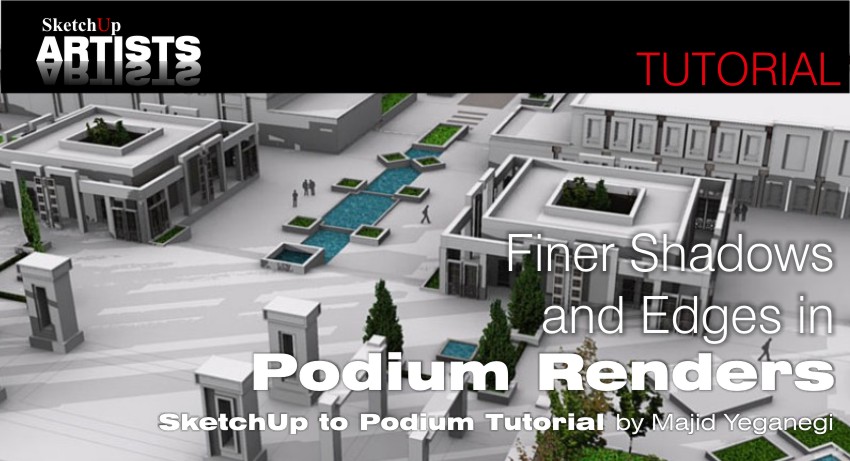
Let’s start with the current style: we need two styles, the first one is a line style that should present depth also and the second one is an appropriate style for podium render, for each scene. Then we will do some post processing using an image editor (here I’m using Photoshop).
Step 1. Choose your scene, and then go to Style Panel (Window>Menu>Style). I started from Default Style, then changed Face Style to Hidden Line Mode and added a White Fog and adjusted it so that it simulates a sense of depth and then exported this first image.
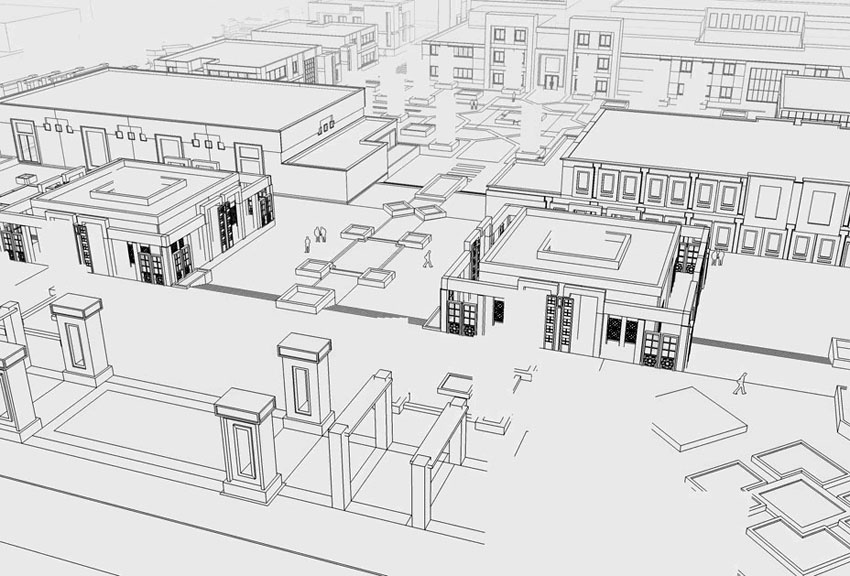
Step 1
Step 2. Then I used Textured Mode for my Face Styles, and using Style Menu (Windows >Menu> Style Menu) changed my background color to a pale gray-violet color and disabled the sky as shown in the picture below.
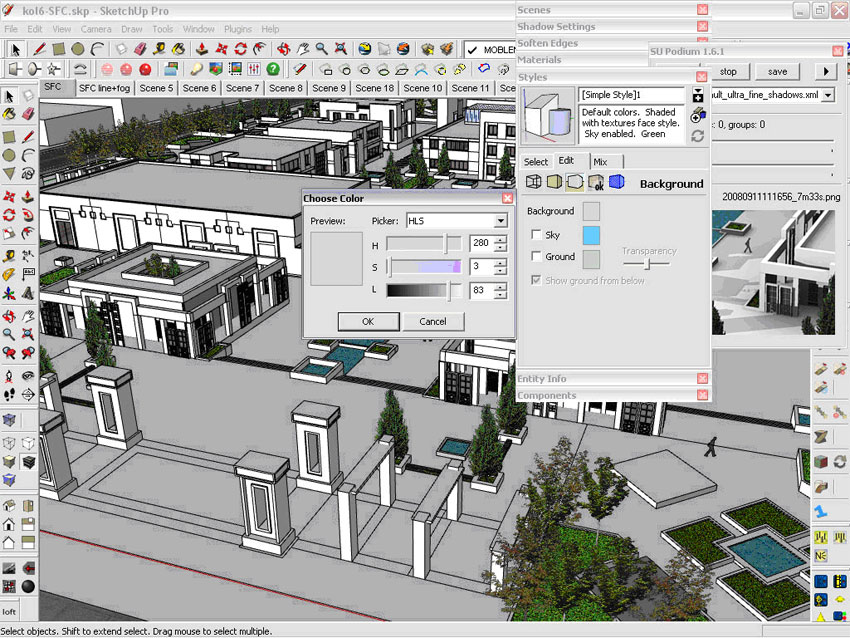
Step 2
Step 3. Now lets start to render. I used a refined “Ultra soft shadow setting” that has low light leaks, while I’ve enabled “Use sun for shading” and disabled “Display shadows” from Shadow Menu.
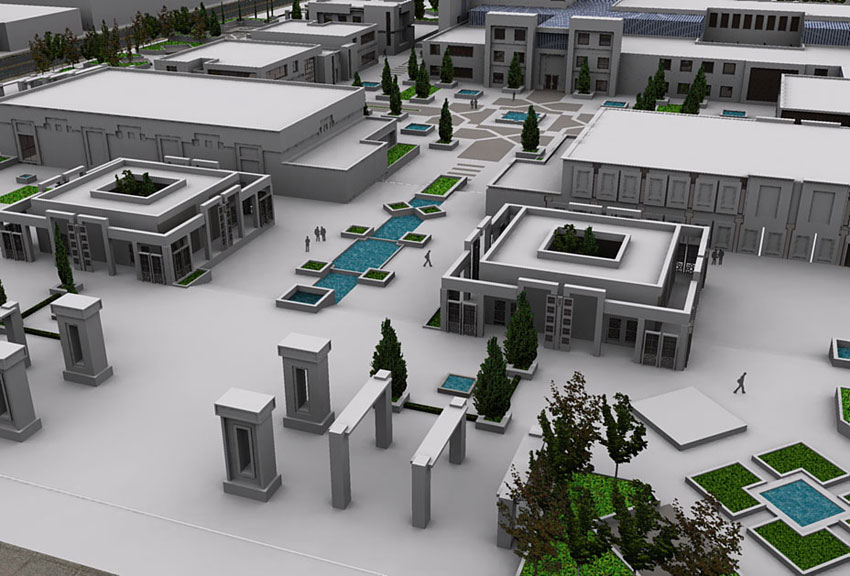
Step 3
Step 4. Now save this render and for the next render, enable “Display shadows” and disable “Use sun for shading” and re-render the same scene.

Step 4
Step 5. Now we have 3 renders. One line render directly from SketchUp and two podium renders. Go to your image editor application ( here I use Photoshop ) , copy and paste the third render over the second one and decrease opacity to 20%. Then merge these 2 layers so that we have a nice soft shadow render that at the same time we can see the shadow edges. This is good enough and maybe you don’t need any more tweaking. Then open the first line render from SketchUp using “Ctrl+Shift+L” and “Ctrl+Shift+U” then adjust it. Copy and paste it over the previous render, change the Blending Mode to Multiply and decrease opacity to about 20%, and merge these two layers again.
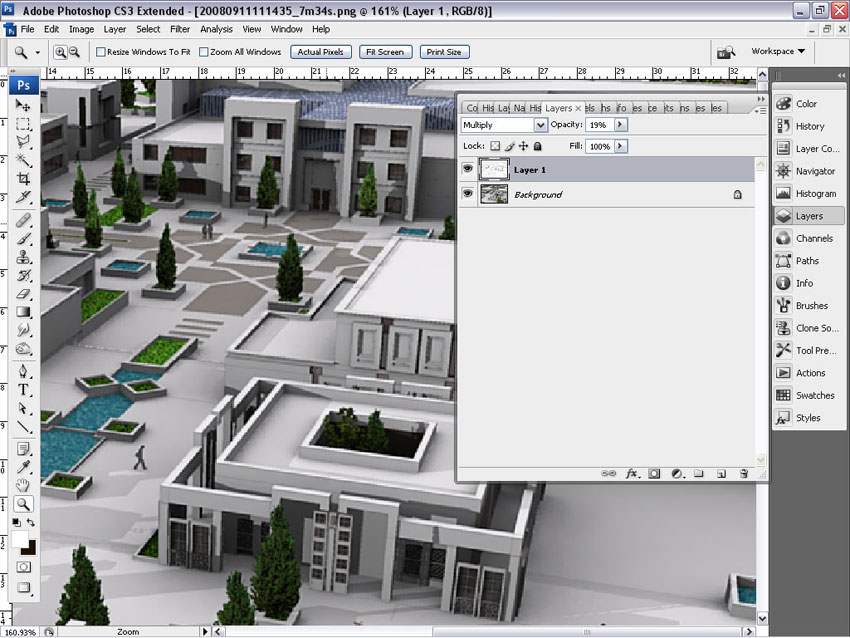
Step 5
Now you have a nice render with fine edges.
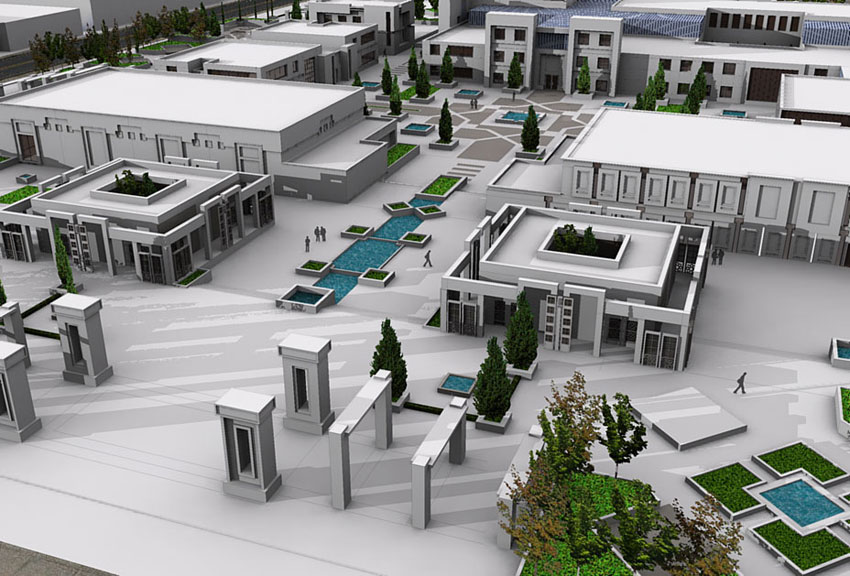
Final Image
Hope this has been helpful to you all and I will have some more new ideas for you real soon.
Cheers
Majid
Profile Builder 4

Artisan Organic Toolset

PlaceMaker Version 3

Skimp Pro Import Extension

BIM Bundle Special Offer!

SketchPlus Artist Bundle !

Bevel Tool

V-Ray 5 for SketchUp E-Book
excellent 🙂
interesting put down , obligated to subscribe .
Good Job!
Waitin to see more from you…
Awesome! Thanks for the tutorial. Just one question, you said you used “Ultra soft shadow setting”. I can’t find it in the Podium setting/options. Where is it located? Thanks!
I had Ultra soft shadow setting on my computer , but donno how to share it, and don’t remember the source, but here are some settings :
http://supodiumforum.websitetoolbox.com/post?id=2093376&trail=45
maybe this : http://supodiumforum.websitetoolbox.com/file?id=520946
I don’t understand about ” I used a refined “Ultra soft shadow setting” that has low light leaks” Where is it ?
I stay in Chiangmai, Thailand.
Best Regard
Jeabdc, you can achieve a ‘soft shadow setting’ by checking the ‘Use Sun for Shading’ box in the Shadows Setting Window. This gives an added sense of realism but will increase render time. See here as well http://www.suplugins.com/173tips.php#25 Sometimes these are also preset settings that people develop and share…
good job man ,,very nice
Fantastic, Podium is a good render; basic but powerfull