
Using HDRI in V-Ray for SketchUp

By Nomer Adona
HDRI stands for High Dynamic Range Imaging. It is a technique that allows a larger span or range of luminance between the light and dark areas of an image. You can use Photoshop or Photomatix to create HDRI. For this tutorial I will not talk about how to create them but rather how to use them in V-Ray for SketchUp. If you want some free excellent HDRI’s you can visit SketchUp Texture Warehouse and find some there to start with. There is another free collection at NoEmotion HDR’s. Please don’t forget to acknowledge them.
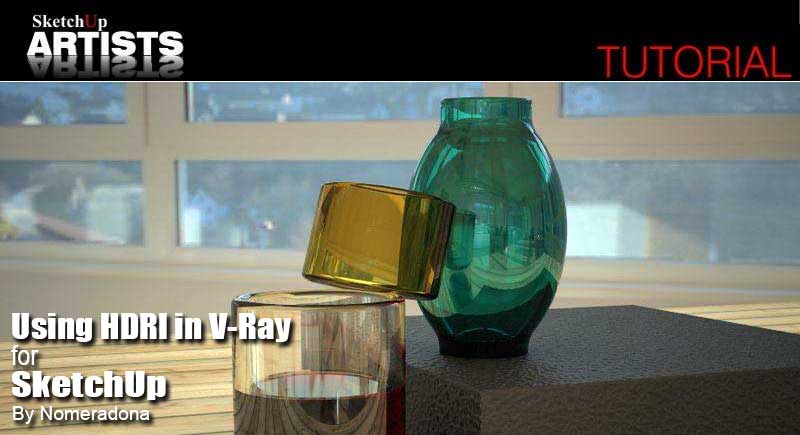
Let me begin this tutorial by using this simple SketchUp setup composing of different types of glass urns using the follow me tool. Since I already rendered the scene before writing this tutorial, the V-Ray glass materials were already added. You might want to download my separate V-Ray Glass Tutorial here.
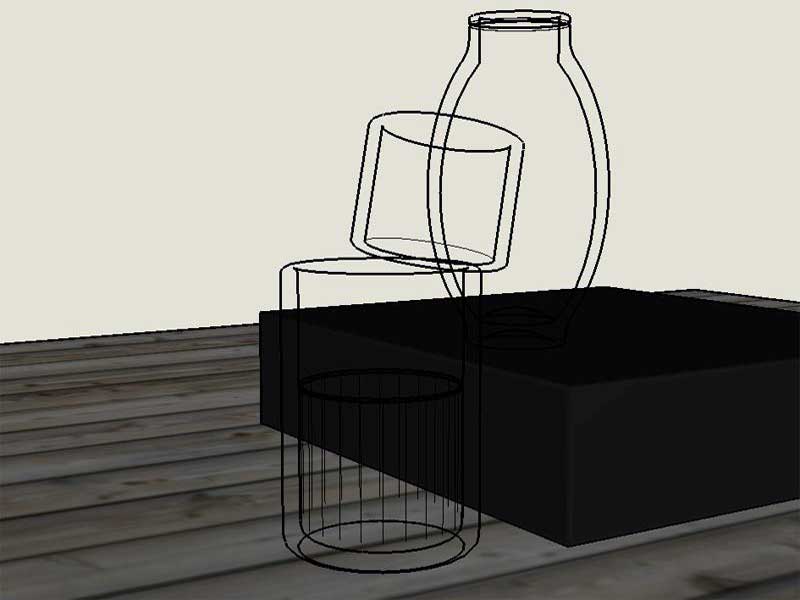
SketchUp Setup
In V-Ray for SketchUp you can actually use the HDRI both as a background and an IBL (Image Based Lighting). If you want to use the HDRI as background, all you have to do is to load it in the Environment Rollout/Background. If you want to use it as an IBL, then you have to load this HDRI in the GI (Skylight). This will become a light source then to
illuminate the scene. Alternatively, you can use the sun and HDRI together by using a Blend Map, but I won’t tackle this one here. The image below explains this clearly.
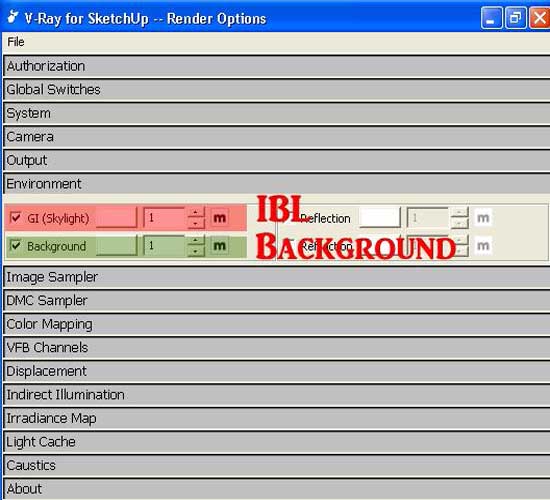
Render Options
To load the HDRI, all you need to do is click the small “m” highlighted at (1) and then click type “Bitmap”, then on the Bitmap File highlighted at (2). Next browse the location of the HDRI file in your computer (3).

Load HDRI
You should select Environment UVW either cylindrical, spherical or box type (depends on the HDRI map type you have). In my case I have chosen spherical map, since I am using a spherical HDRI map. My setting is basic, except for two things, my Physical Camera and the Irradiance setting which has a little higher hsph subdivision.
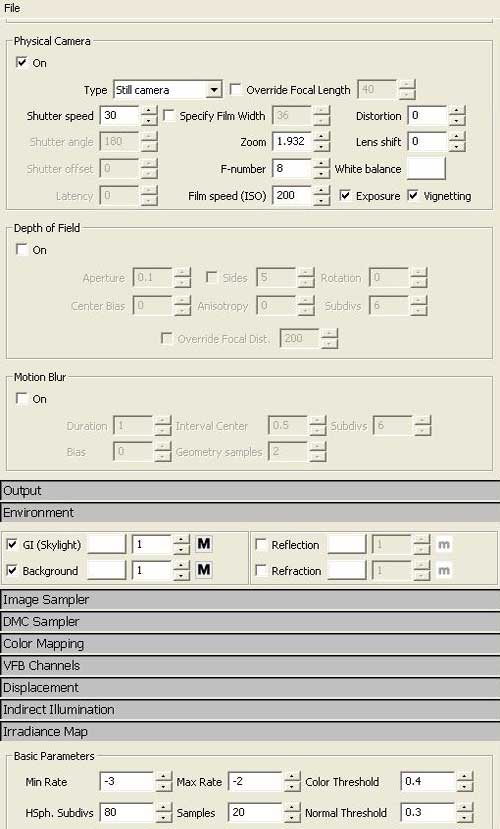
Physical Camera and Irradiance Setting
Alternatively, do not even bother to use the Physical Camera since the HDRI will override the SUN which is a big Omni light. You will find that you don’t have to worry about balancing the Physical Camera setting and the multiplier of your HDRI. The only problem really is just syncing the V-Ray camera with the SketchUp camera. This is the reason why I used the Physical Camera. By using Thomthom’s V-Ray Toys plugin. I was able to sync the V-Ray camera and SketchUp camera. The image below is the render. The render is a bit dark, but you can see the reflection on the
environment. You can also see the rendering time is quick.
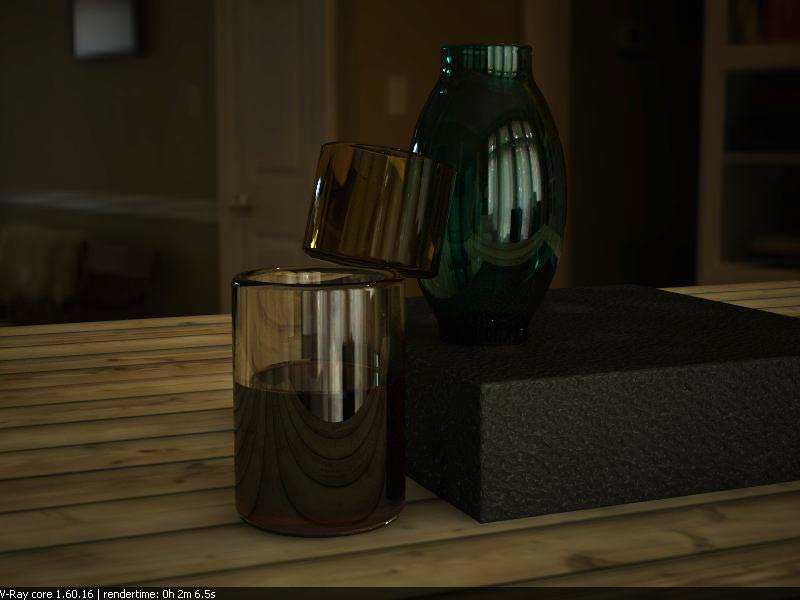
First V-Ray Render
To lighten the image, I just increase the gamma of my HDRI, both in the background and skylight. Saving Irradiance and increasing the HDRI Gamma to 1.2
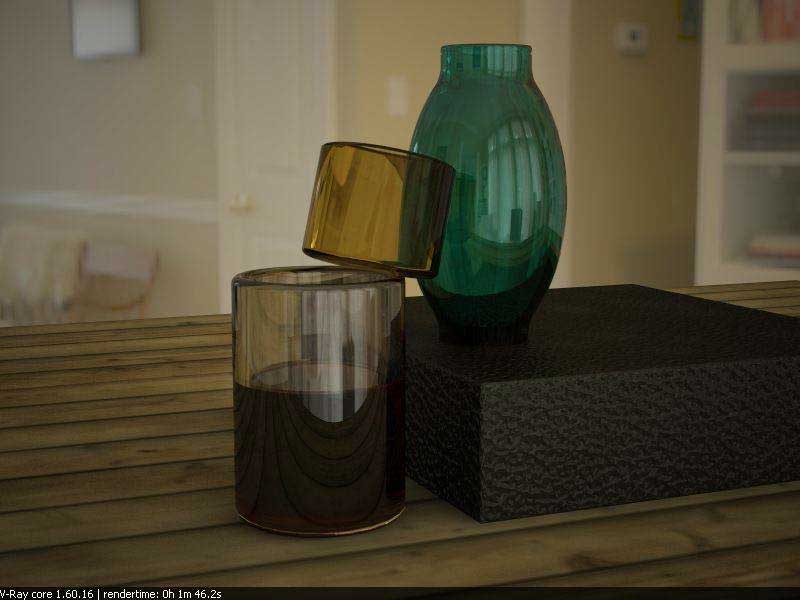
Second Lighter V-Ray Render
Alternatively instead of raising the Gamma, you can also adjust the multiplier of the map or create an extra Omni light to lighten the scene. Again this thing is up to you. Finally, here are some more renders using different HDRI’s.
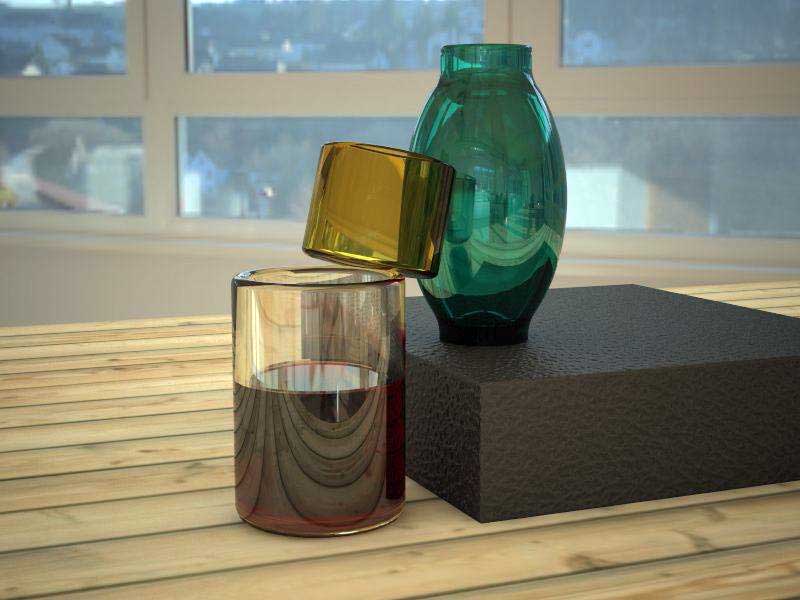
Different HDRI
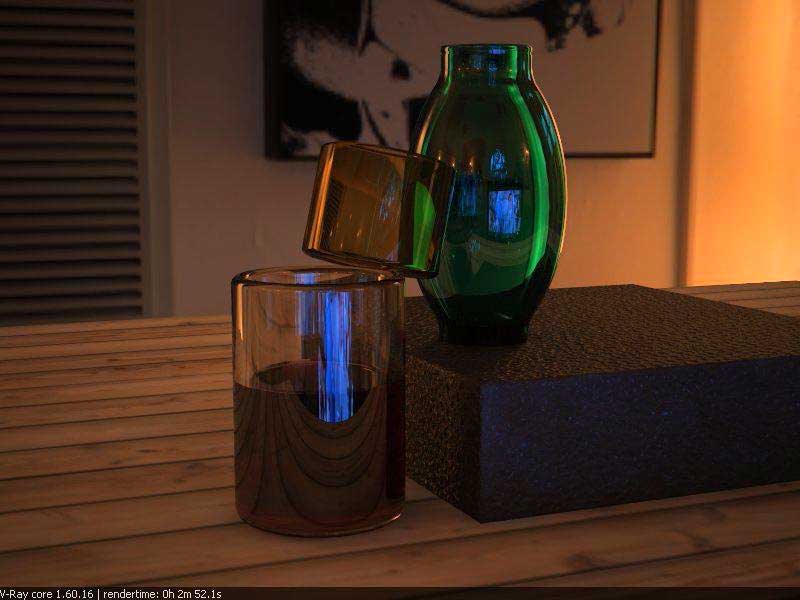
Different HDRI
I hope this tutorial is useful to you and look forward to sharing my next!
Cheers
Nomer Adona
Some of Nomer Adona’s other tutorials here at SketchUpArtists:
- Lighting with V-Ray for SketchUp – definitive guide part 2
- Lighting with V-Ray for SketchUp – definitive guide part 1
- Basic IES Tutorial Using V-Ray for SketchUp
- IES Light Tutorial using V-Ray for SketchUp
- Create a Tile Imprint SketchUp, Photoshop, Pixplant and V-Ray
- Texture Workflow with SketchUp, Photoshop and Podium
- Use Image Editing Software Inside SketchUp
- A Watercolor Line Drawing Ink Effect
Profile Builder 4

Artisan Organic Toolset

PlaceMaker Version 3

Skimp Pro Import Extension

BIM Bundle Special Offer!

SketchPlus Artist Bundle !

Bevel Tool

V-Ray 5 for SketchUp E-Book
its verymuch informative….. thanks
Awesome! thanks bro 🙂
Its Sooooooo nice, am a vray enthusiastzzz… thankss a lot!!
thanks for the information is certainly useful to me in
Very helpful..he’s a good man!!
How do you controll the size of HDRI appearance in the background. I mean i may be proportionately bigger or smaller than what it should had been. in that case the image will not look real.
for example, in the last render lets assume that the painting in the wall is being rendered about the same size of the green glass of the model. how to control that?
thanks in advance.
sir can we use hdri/ibl on night settings? where can i download hdri files? tahnks a lot.
How can I reduce the scale of HDRI image?
in my scene the hdri is huge….
thaks.
thanks for your tutorial.
very informative
very good..i want to try this but at first it would take a longer time to learn definitely but I will try to learn fast..
I want a realistic exterior rendering settings
Thanks so much
where can i download the HDRI??and the Texture??
John, the Hdri links have been updated at the beginning of this tutorial. You can check them out now. Hope this helps…
Good day!
How do I map HDRI appear throughout the scene?
For example:
I’m designing a building and would like to show only the sky throughout the Background. Every time I put a HDRI, shows the sky, but down the horizon is dark or gray. More must also be part of this with sky as well.
Thank you Nomer!
Thank you for sharing the Sketch Up tutorial….:)