
IES Light Tutorial using V-Ray for SketchUp

By Nomer Adona
V-Ray for SketchUp (ver. 1.48.66) has the new added feature of IES Lights and Spotlights. V-Ray works within the SketchUp environment allowing users to be able to efficiently incorporate the task of rendering within their current workflow. IES (Illumination Engineering Society) is a standard digital file in ASCII format, which measures the distribution of light, in other words the intensity of the light and its shape. Lamp manufacturers create these files for accurately simulating their lights and now we have the ability to add IES profiles (for light accuracy).
I have a new second tutorial, just published called Basic IES Light Tutorial using V-Ray for SketchUp. I use V-Ray release version 1.48.90 in it, which is a much better and stable release.
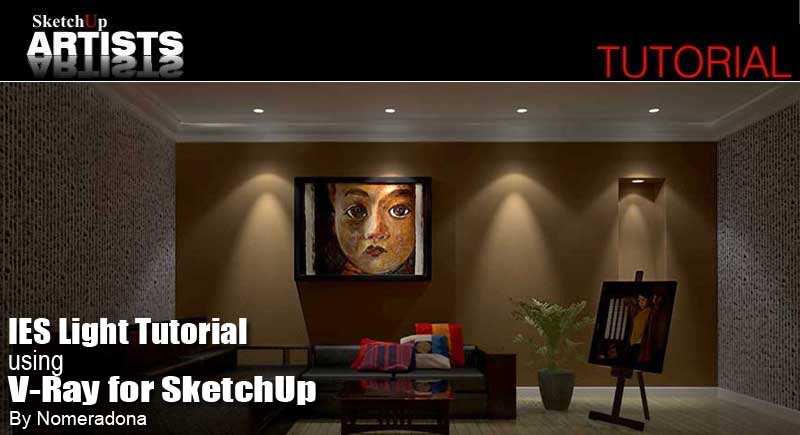
In this simple tutorial we are going to set up three basic pin lights using imported IES files. You can download IES files files of your own choice from here GE Lighting and more here IES Maps and a SketchUp light fitting here. More IES files here if those don’t work for your particular version of V-Ray.You can also download the GE Light*Beams 3.0 software at the bottom of this page. Its a powerful lighting design aid for GE directional reflector lamps. Included is a complete database of IES files for current GE products. Another collection of IES files can be found in the links below:
- Metalumen
- Holophane Library
- American Electric Lighting Photometry
- Philips Color Kinetics IES Files
- Collection here at SketchUp Texture Blog
Here is the room set up. A simple box with 3 pin lights as shown in the image below.
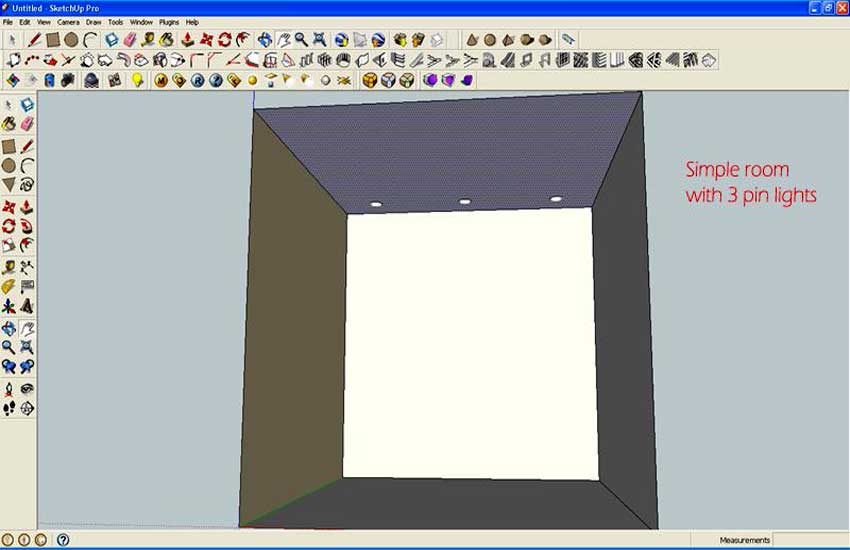
Room Setup
Follow the steps highlighted in the following images below.
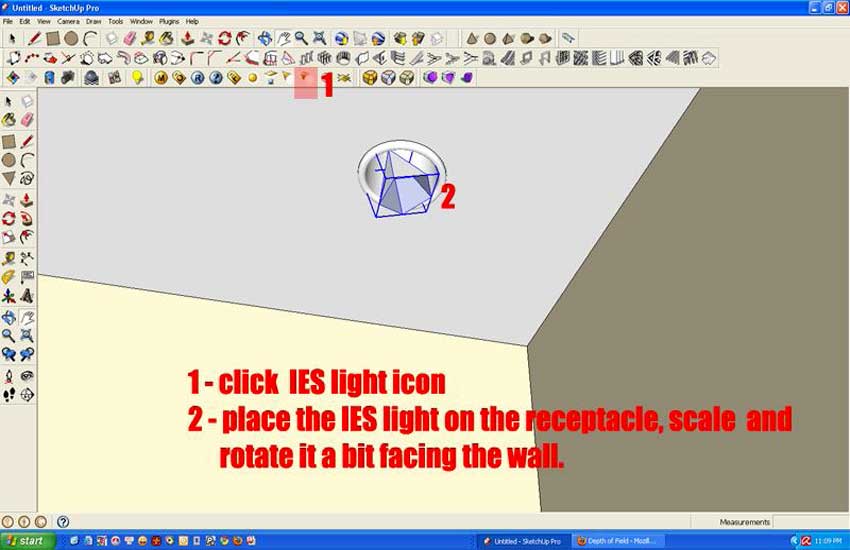
Steps 1-2
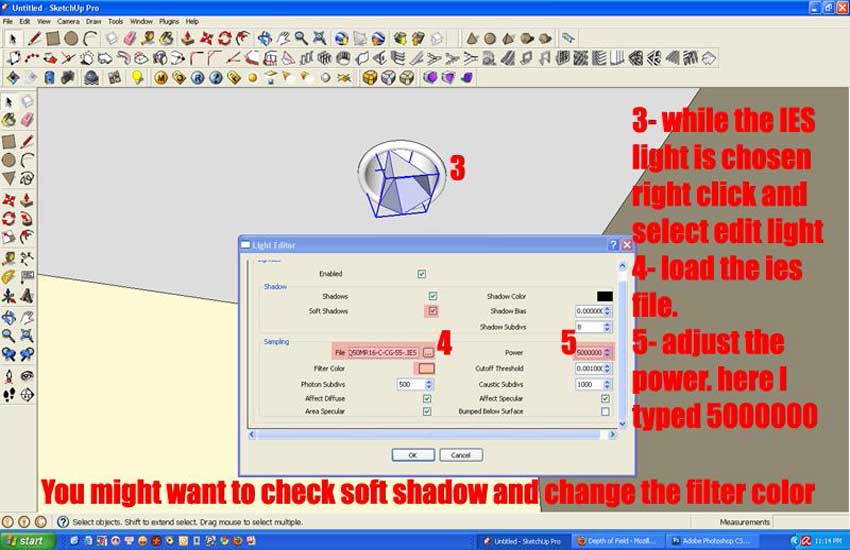
Steps 3-4-5
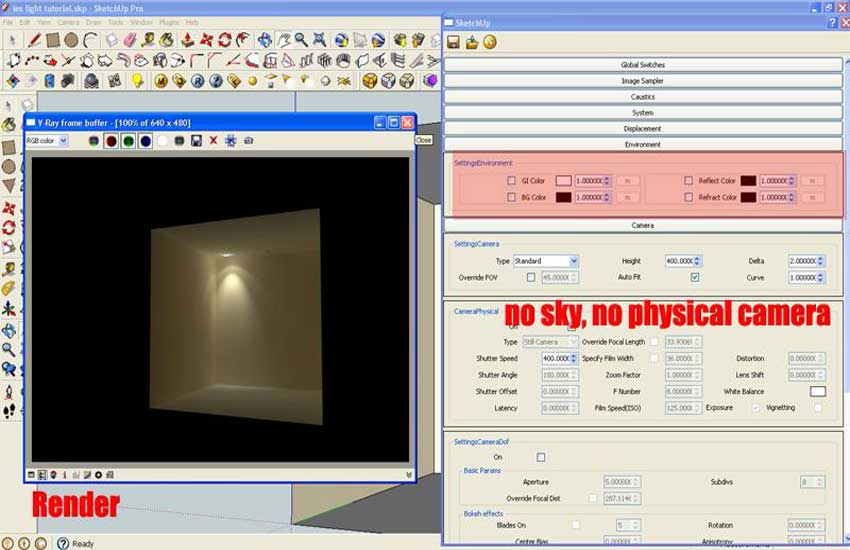
Step 6
And here is the render where I used 3 different types of IES light data. You will see the rendering time using default setting with no sky and no physical camera, the rendering time is just 14.7 seconds. You can also see the difference in the spread and intensity of the three lights.
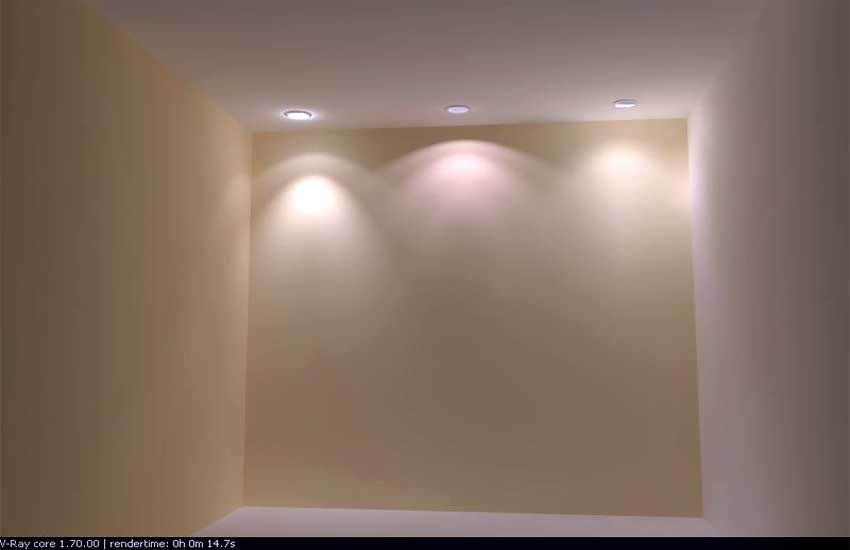
Render with 3 different types of IES light data
Some sample render scenes using what we have learned in this tutorial.
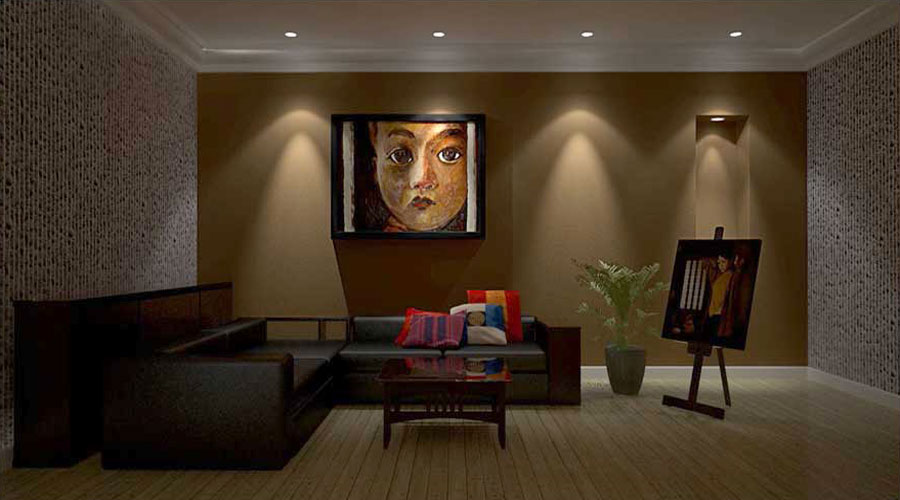
Image 1
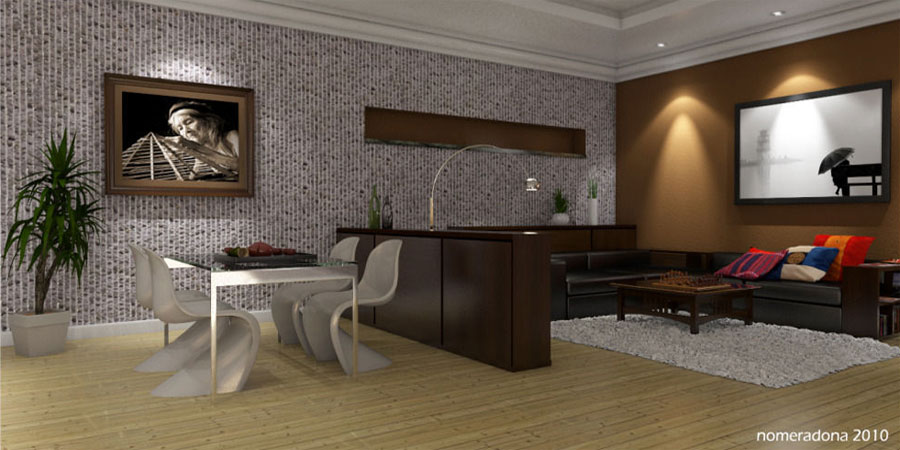
Image 2
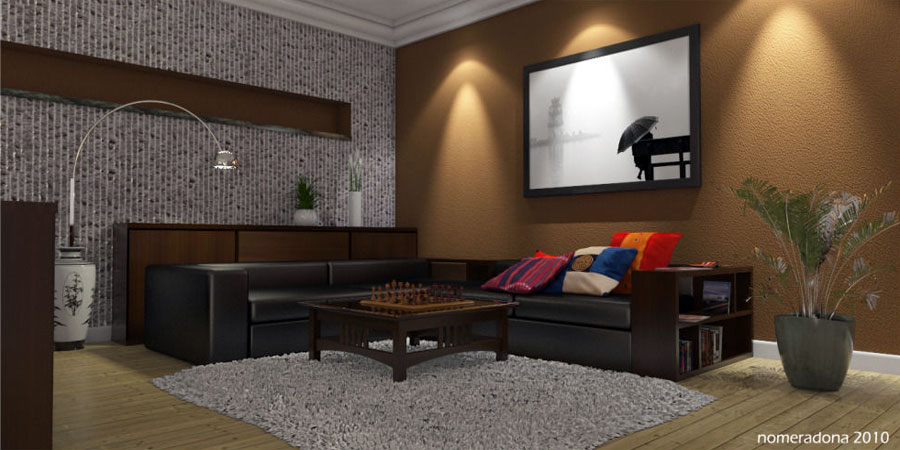
Image 3
I hope you enjoyed this short tutorial and find it useful in your future projects.
Check out my second tutorial on IES lights (Basic IES Light Tutorial using V-Ray for SketchUp) which uses a less ‘buggy’ release version of V-Ray for SketchUp. Also here is another short tutorial on using IES lights in a 3ds Max work flow, may be useful in helping you understand the concept and use.
Thanks
Nomer Adona
Some of Nomer Adona’s other tutorials here at SketchUpArtists:
- Lighting with V-Ray for SketchUp – definitive guide part 2
- Lighting with V-Ray for SketchUp – definitive guide part 1
- Basic IES Tutorial Using V-Ray for SketchUp
- Using HDRI in V-Ray for SketchUp
- Create a Tile Imprint SketchUp, Photoshop, Pixplant and V-Ray
- Texture Workflow with SketchUp, Photoshop and Podium
- Use Image Editing Software Inside SketchUp
- A Watercolor Line Drawing Ink Effect
Don’t forget to check out Nomer’s own website for more of his inspiring work and free resources.
Profile Builder 4

Artisan Organic Toolset

PlaceMaker Version 3

Skimp Pro Import Extension

BIM Bundle Special Offer!

SketchPlus Artist Bundle !

Bevel Tool

V-Ray 5 for SketchUp E-Book
Hey Guys,
Tried all the steps, though am am not able to get the render right. Can anyone help me out with a step by step tutorial?
This would really help!
Thanks. 🙂
Nomeardona sos un genio.
You are truly a genius, thank you so much for all the help you give us!
to Nemoradona
could you share your visopt file to me please??? 🙂
ive followed your steps but still i got black picture
this is so simple and great thanks….
Nomeardona
Hi Nomeardona i have a huge problem; i have started to put in my IES lights in my sketchup model. the first two worked great then i tryed to copy the third one from the first IES light and it didn’t want to work. i then stoped and carry on with another IES light with diffrent properties and it work i then copied it again and both the IES lights doesnt show in the rendering but the previous light that didnt want to work works now. but everything that i want to put in now doesnt work at all. the only lights that does show when i render is the thirst three that I have done. I went through all my settings and i cant find the problem. please can you help me.
It is Very Good .thanks for you .
GRACIAAAAAAAAAAAAAAAAAAAAAAAAAS
nice and simple… awesome for the begineers like me… !!
Thank you verry much, nice render, good lesson…